Fix Gemini Voice Issues & Use Gemini Live
If you ask, "Hi Gemini, can you hear me?" and receive no response, the app is likely not receiving audio input. To fix this immediately, verify that the Google app has Microphone Permissions set to "While Using the App" in your device settings. If permissions are correct but it still fails, you may be experiencing the "Switch To" glitch, which requires manually selecting Gemini as your primary digital assistant in the Google Assistant settings menu.
As Google continues to integrate generative AI into its mobile ecosystem, many users are transitioning from the legacy Google Assistant to the new Gemini interface. However, this transition is not always seamless. Whether you are trying to dictate a quick text message or engage in a deep, philosophical conversation using the new Gemini Live feature, voice recognition failures can be incredibly frustrating.
This comprehensive guide explores the technical reasons behind Gemini voice issues, provides step-by-step troubleshooting methods verified by the community, and delves into advanced techniques for maximizing your conversational AI experience.
Image source: YouTube
Why Is Gemini Not Responding When You Speak?
When you initiate a voice command by saying, "Hi Gemini, can you hear me?", the application relies on a complex chain of hardware and software handshakes. If any link in this chain breaks, the AI will remain silent. The most immediate indicator of a successful connection is visual feedback: if you do not see a moving waveform animation on your screen, the application is not receiving your audio.
To troubleshoot effectively, it is crucial to understand that Gemini currently utilizes two distinct modes of listening:
- Voice-to-Text (Standard Mode): Activated by tapping the traditional microphone icon. In this mode, the app listens to a single query, transcribes your speech into text, processes the prompt, and delivers a text-based (and sometimes spoken) response. It stops listening as soon as you pause.
- Gemini Live (Conversational Mode): Activated by tapping the waveform icon (often located in the bottom corner). This mode opens a continuous, full-duplex audio channel, allowing for a natural back-and-forth conversation where you can interrupt the AI mid-sentence.
Before diving into deep system settings, run through this immediate diagnostic checklist:
- Check your internet connection: Unlike some basic Google Assistant commands that can process locally on-device, Gemini requires a robust cloud connection to process complex language models.
- Verify media volume: Gemini may be hearing you perfectly and responding, but if your media volume (not just your ringer volume) is muted, you won't hear the reply.
- Check for audio focus conflicts: If another application (like a screen recorder, a background phone call, or a poorly coded game) is currently holding the "audio focus" on your device, the operating system will block Gemini from accessing the microphone.
How to Fix the Most Common Gemini Voice Problems
If the basic checklist didn't resolve your issue, the problem likely lies within your operating system's permission architecture or a conflict with legacy Google Assistant code.
Granting the Correct Microphone Permissions
Modern mobile operating systems are highly restrictive regarding microphone access to protect user privacy. If the Google app (which powers Gemini) lacks the correct permissions, voice features will fail silently.
On Android:
- Open your device Settings.
- Navigate to Apps > See all apps.
- Scroll down and select the Google app (or the dedicated Gemini app if installed separately).
- Tap Permissions > Microphone.
- Ensure it is set to Allow only while using the app.
On iOS:
- Open the Settings app.
- Scroll down to find the Google app.
- Ensure the toggle next to Microphone is switched to the green "On" position.
Solving the "Switch To" Glitch in Your Settings
One of the most widely reported issues on community forums like Reddit is a glitch where Gemini has full permissions but still refuses to register audio. This often occurs because the device is caught in a software loop between the old Google Assistant and the new Gemini framework.
Users have found a reliable fix by manually forcing the system to recognize Gemini as the primary digital assistant:
- Open the Google app and tap your profile picture in the top right corner.
- Select Settings.
- Tap on Google Assistant.
- Scroll down to find Digital assistants from Google.
- You will see options for both Google Assistant and Gemini. Even if Gemini appears to be selected, toggle the selection to Google Assistant, wait five seconds, and then toggle it back to Gemini.
This action forces the operating system to rewrite the default assistant routing, often instantly curing the "deaf microphone" issue.
Why "Hey Google" Might Still Trigger the Old Assistant
When you opt-in to Gemini, it is designed to replace Google Assistant as your primary mobile helper. However, due to the complex nature of Android's system architecture, certain triggers—specifically the "Hey Google" wake word—might still route to the legacy Assistant UI, causing confusion and feature fragmentation.
If saying "Hey Google" brings up the old Assistant interface while long-pressing the power button brings up Gemini, your app cache is likely out of sync. To force a refresh, navigate to your Android settings, find the Google app, select Storage & Cache, and tap Clear Cache. Following this, restart your device to ensure the new Gemini routing takes priority.
Everything You Need to Know About Gemini Live
Once your microphone issues are resolved, you can take advantage of Gemini Live, which represents a significant advancement in how we interact with AI on mobile devices.
Image source: TechRadar
How to Start a Natural Back and Forth Conversation
Unlike traditional voice commands that require you to wait for a response before speaking again, Gemini Live is designed for fluidity. Look for the waveform icon in the Gemini app. Tapping this initiates a Live session.
The defining feature of Gemini Live is interruptibility. If the AI is giving a long-winded answer, you do not need to wait for it to finish. You can simply speak over it—saying something like, "Actually, skip that part and tell me about the pricing"—and the AI will halt its current output, process your new instruction, and pivot the conversation instantly.
What Can Gemini Live Actually Do for You?
Gemini Live excels in scenarios that require brainstorming, role-playing, or complex summarization. It is less about executing device commands and more about cognitive assistance.
| Use Case | Standard Voice Command | Gemini Live Conversation |
|---|---|---|
| Interview Prep | "Give me a list of common interview questions." | "Act as a hiring manager for a tech company and conduct a mock interview with me right now." |
| Travel Planning | "What is the weather in Tokyo?" | "I'm going to Tokyo for 5 days. Let's talk through a daily itinerary based on my love for architecture." |
| Learning | "Define quantum computing." | "Explain quantum computing to me, and let me ask follow-up questions if I get confused." |
Understanding the Current Limitations of Live Mode
While highly capable, Gemini Live operates under strict technical constraints to maintain low latency. According to official documentation, when you are in a Live session, the AI cannot currently access "Gems" (customized AI personas) or "Notebooks" (your uploaded documents). Furthermore, specialized sub-models like Lyria 3 (for audio generation) and Nano Banana 2 (for advanced image editing) are disabled during Live mode to prioritize conversational speed over multimodal processing.
Advanced Power User Tips for Gemini Voice
For users who want to push the boundaries of what Gemini can do, understanding how to manipulate context and model selection is key.
How to Import Your Memory from ChatGPT or Claude
If you are migrating to Gemini from another AI platform, you might be frustrated by having to "re-teach" the AI your preferences, writing style, or ongoing project details. A highly effective strategy detailed by tech publications like PCMag involves a "Memory Import" workflow.
Go to your previous AI (like ChatGPT) and ask it to generate a comprehensive summary of your user profile, preferences, and key ongoing conversations.
Copy this summary. Open Gemini and use a framing prompt: "I am migrating my workflow to you. Please read the following user profile and adopt these preferences for all our future interactions: [Paste Summary]."
Pin this specific chat in your Gemini history. When you start a voice session, you can reference this pinned context to ensure Gemini maintains your desired persona.
Which Gemini Model Is Handling Your Voice Request?
Not all voice requests are processed equally. Google dynamically routes your audio based on the complexity of the task and your subscription tier.
- Gemini 1.5 Flash This is the default model for most free-tier voice interactions. It is optimized for speed and low latency, making it ideal for quick questions and basic Live conversations.
- Gemini Omni Reserved for complex reasoning tasks, this model processes audio natively (without converting it to text first), allowing it to pick up on vocal nuances, tone, and emotion.
- Gemini Advanced Available via the AI Premium subscription, this tier utilizes the largest parameter models for deep coding, extensive document analysis, and highly nuanced voice interactions.
Because these models are vastly more complex than the old Google Assistant, you may notice that simple requests (like "turn on the flashlight") actually take a fraction of a second longer to process via Gemini. This is the trade-off for having a massive neural network handle your request rather than a simple, hard-coded script.
Is Gemini Always Listening and Is Your Data Private?
The shift to conversational AI raises valid concerns about data privacy and audio retention. It is essential to understand how Google handles the voice data you transmit through the Gemini app.
How Google Handles Your Voice Recordings
When you speak to Gemini, your audio is processed on Google's servers. To improve the underlying language models, Google employs a process called Reinforcement Learning from Human Feedback (RLHF). This means that a random, anonymized sample of user conversations is selected for review by human annotators to grade the AI's performance.
Crucially, data that is selected for human review is disconnected from your specific Google account but is retained for up to three years. Because of this retention policy, it is highly recommended that you avoid speaking sensitive personal information, passwords, or confidential business data during a Gemini voice session.
How to Delete Your Gemini Activity and Voice History
You maintain control over your data and can delete your history at any time. To manage your voice recordings:
- Open your web browser and navigate to myactivity.google.com/product/gemini.
- Here, you will see a chronological list of all your text and voice prompts.
- You can delete individual interactions by clicking the 'X' next to them, or use the Delete button at the top to wipe data from a specific date range or all time.
- To prevent future storage, you can toggle off Gemini Apps Activity entirely, though this will limit the AI's ability to remember context across different sessions.
Gemini vs. Google Assistant Voice Capabilities
Many users wonder why they should switch to Gemini if Google Assistant already handles voice commands perfectly well. The answer lies in the fundamental difference between a "Command AI" and a "Conversational AI."
According to Google's official transition documentation, while Gemini is highly capable, it does not yet have full feature parity with the legacy Assistant for certain device-level tasks.
| Feature / Capability | Google Assistant | Google Gemini |
|---|---|---|
| Smart Home Control | Highly optimized, fast execution for lights, thermostats, and routines. | Functional, but often routes through Assistant extensions; can be slightly slower. |
| Complex Reasoning | Fails frequently; relies on reading web search results aloud. | Exceptionally strong; can synthesize information, debate, and brainstorm. |
| Contextual Memory | Forgets the topic of conversation after 1-2 follow-up questions. | Maintains deep context over long, multi-turn conversations. |
| Third-Party Media Integration | Deep integration with Spotify, Netflix, and podcast apps. | Currently limited; some media commands still default back to Assistant logic. |
| Speed of Execution | Near-instant for basic device commands (timers, alarms). | Slightly delayed due to the processing overhead of large language models. |
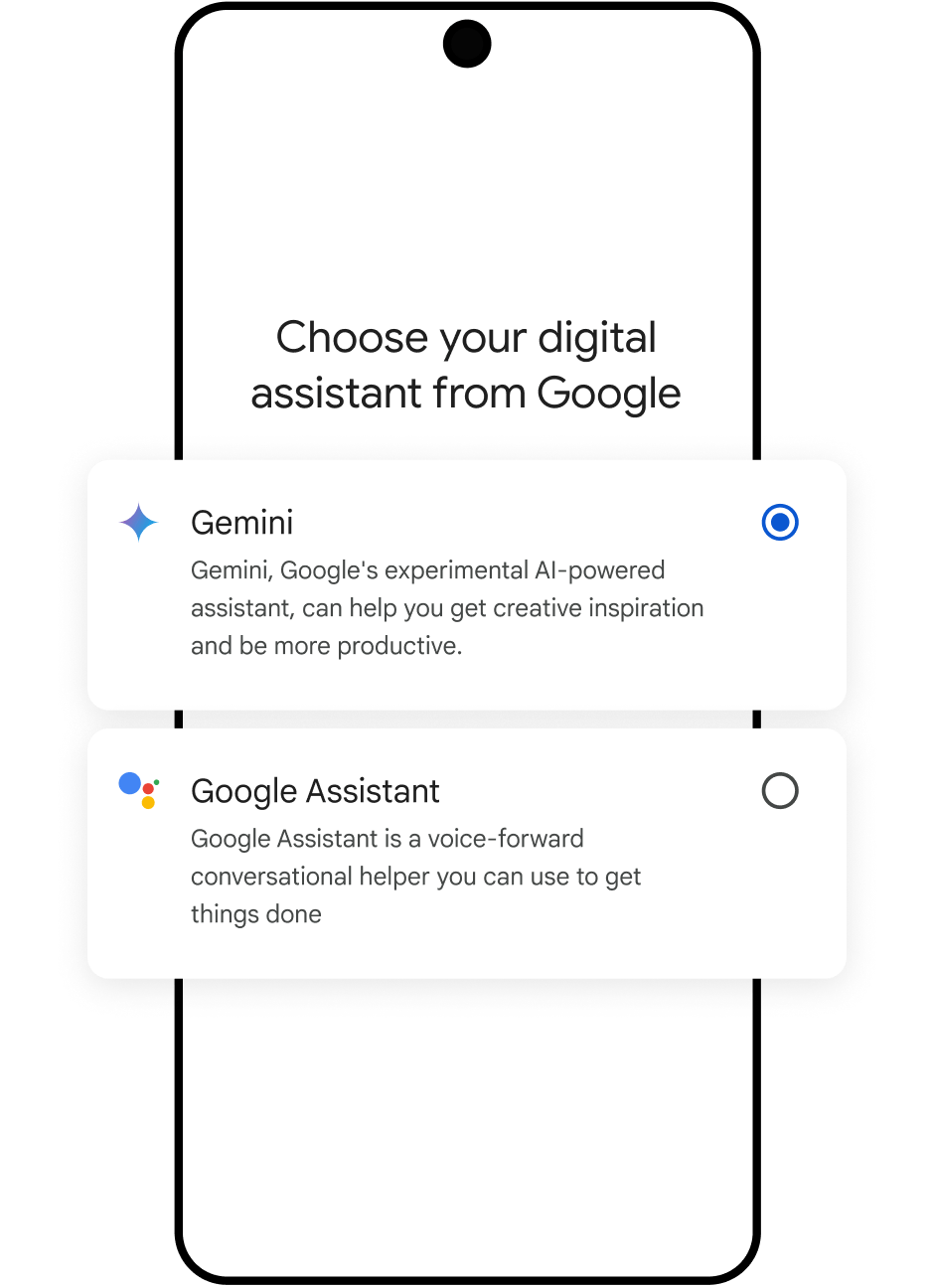
Image source: Google Assistant
Frequently Asked Questions
The Bottom Line on Using Gemini Voice
Transitioning from a command-based assistant to a conversational AI requires a slight adjustment in how you interact with your device. When Gemini voice features work correctly, they offer a highly capable tool for brainstorming, learning, and productivity. If you are struggling with recognition issues, the problem is almost always rooted in permission settings or legacy software conflicts.
Key Takeaways
- Verify permissions first: Ensure the Google app has "While Using the App" microphone access in your system settings.
- Fix the glitch: If the mic is deaf, manually toggle your digital assistant from Gemini to Assistant and back again in the settings menu.
- Know the icons: Use the standard microphone icon for quick dictation, and the waveform icon for continuous Gemini Live conversations.
- Clear the cache: If "Hey Google" triggers the old UI, clearing the Google app cache often forces the system to route to Gemini.
- Mind your privacy: Remember that human-reviewed voice data can be retained for up to three years; avoid sharing sensitive information.
- Expect slight delays: Gemini processes complex language models, meaning simple commands may take a fraction of a second longer than the old Assistant.
- Leverage Live mode: Use Gemini Live for tasks that benefit from interruptibility and natural back-and-forth dialogue, like interview prep or brainstorming.