How Many Files Can You Upload to ChatGPT and What Are the Size Limits?
For most standard interactions, users can upload a maximum of 10 files per single message prompt, with a hard size limit of 512MB per file. However, your total daily capacity depends heavily on your subscription tier.
- Free users are restricted to roughly 3 files per 24-hour window.
- Plus users can upload approximately 80 files per 3-hour rolling window.
- Hidden Constraint: All Plus users share a lifetime 25GB storage cap. If you hit this cap, you will receive an "Upload limit reached" error regardless of your 3-hour usage.
Data verified as of June 2026.
Understanding the max number of files you can upload to ChatGPT requires looking beyond a single simple number. OpenAI has implemented a multi-layered system of constraints designed to manage server load, compute costs, and storage capacity. These limits are categorized into per-prompt limits, time-based rate limits, file size caps, and overall account storage quotas.
Whether you are attempting to analyze a massive dataset, extract text from dozens of PDFs, or process a batch of images, hitting an upload wall can disrupt your workflow. This guide breaks down the exact technical specifications of ChatGPT's file handling capabilities and provides actionable strategies for managing large-scale data analysis.
How File Upload Limits Change Across Different ChatGPT Plans
Your subscription tier is the primary factor dictating how many files you can process in a given timeframe. OpenAI adjusts these limits dynamically based on global server demand, meaning the stated limits act as a ceiling rather than an absolute guarantee during peak hours.
Users on the free tier have highly restricted access to Advanced Data Analysis. You are typically limited to 3 files per 24-hour window. Once this limit is reached, you must wait a full day or upgrade to a paid tier to continue processing documents.
Plus users enjoy a significantly higher threshold, generally allowing for ~80 files per 3-hour rolling window. You can attach up to 10 files to a single prompt. However, this tier introduces the 25GB lifetime storage cap, which often catches power users off guard.
Introduced as a top-tier option for heavy users, the Pro plan offers virtually unlimited total uploads and extended compute access. While the 10-file per-message limit still applies to keep context windows manageable, the 3-hour rate limits are largely removed.
Designed for organizational use, these plans offer 80+ files per 3 hours per user, alongside a shared 100GB organizational storage pool. They also feature expanded capacities for the "Projects" workspace feature.
According to the OpenAI Help Center, it is important to note that limits are subject to dynamic adjustment. During periods of extreme server load, Plus users may find their 80-file limit temporarily reduced to ensure platform stability.
| Feature Constraint | Free Plan | Plus Plan | Team / Enterprise |
|---|---|---|---|
| Files per Time Window | 3 per 24 hours | ~80 per 3 hours | 80+ per 3 hours |
| Files per Single Prompt | 1 to 3 | 10 | 10 |
| Max File Size | 512MB | 512MB | 512MB |
| Total Account Storage | Highly Limited | 25GB | 100GB (Shared) |
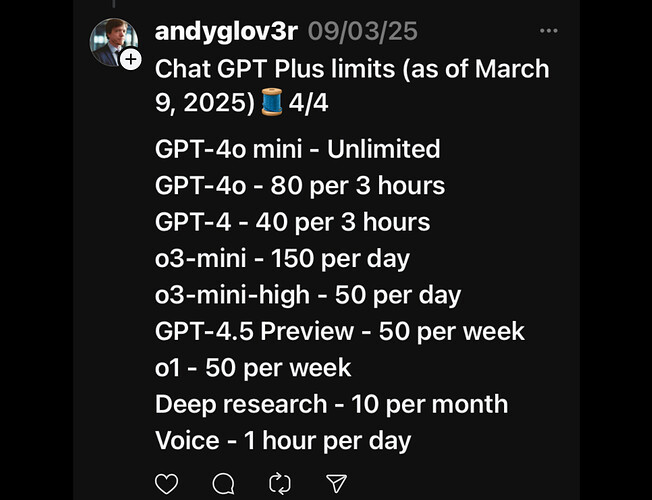
Image source: OpenAI Developer Community
Understanding the Hard Limits for Individual File Sizes
Even if you have plenty of upload slots available in your 3-hour window, each individual file must conform to strict size and format constraints. ChatGPT processes different file types using different backend mechanisms, which results in varying size limits.
- General Documents (PDF, DOCX, TXT)
- The absolute maximum size for a standard document is 512MB per file. This is a generous limit that accommodates massive text files, lengthy books, and comprehensive reports. However, as discussed in the next section, reaching this size limit often triggers secondary token constraints.
- Images (JPG, PNG, WEBP)
- Image files are capped at 20MB per image. Because images are processed by the Vision model (which requires significant compute power to perform Optical Character Recognition and visual analysis), the size limit is kept lower to prevent system timeouts.
- Spreadsheets (CSV, XLSX)
- While technically falling under the 512MB umbrella, spreadsheets effectively have a functional limit of roughly 50MB. This is highly dependent on row density and formula complexity. A 50MB CSV file might contain millions of rows, which requires the Advanced Data Analysis tool to write and execute complex Python scripts to parse the data. If the script takes too long to run, the upload will fail even if the file size is technically allowed.
For users looking to process massive datasets, OneFile's documentation notes that converting complex Excel files into flat CSVs can often help bypass parsing errors, as it removes formatting bloat and hidden metadata.
Why Your File Might Fail Even if It Is Under the Size Limit
One of the most common frustrations among power users is uploading a file well under the 512MB limit, only to have ChatGPT fail to analyze it properly. This occurs because file size in megabytes is not the only metric OpenAI tracks; the system also measures the data in tokens.
If you upload a highly text-dense PDF that is only 100MB but contains 3 million tokens, you will encounter silent truncation. ChatGPT will successfully upload the file, read the first 2 million tokens, and completely ignore the remainder of the document. The system typically does not warn the user that the end of the document was cut off, leading to inaccurate summaries or missing data in your analysis.
According to technical breakdowns by Fast.io, this token limit applies strictly to text extraction. It does not apply to spreadsheets analyzed via Python, as the code interpreter reads the data in chunks rather than loading the entire text into the language model's context window at once.
The Vision Throttling Effect
Another hidden failure point occurs when uploading multiple images. Users attempting to scan a book by uploading 50 images of pages often hit an "unspecified error" after about 30 to 40 images. This is known in the OpenAI Community forums as "Vision throttling."
Because Optical Character Recognition (OCR) is highly compute-intensive, the system will throttle your connection if you request too many visual analyses in rapid succession, even if you are technically under your 80-file limit. For high-volume image tasks, utilizing the OpenAI API is widely regarded as a more stable approach than the consumer chat interface.
How to Manage Your 25GB Lifetime Storage Cap
If you receive an "Upload limit reached" error but you haven't uploaded anything in the past 24 hours, you have likely hit the hidden lifetime storage cap. Every Plus user is allocated a total of 25GB of storage space across their entire account.
This 25GB limit includes:
- Every PDF, image, and spreadsheet you have ever uploaded to any chat.
- Files uploaded to the knowledge bases of your Custom GPTs.
- Data stored within ChatGPT Projects.
- Images generated by DALL-E within your conversation history.

Image source: For the Michigan Technology Community - University of Michigan
To check your current storage usage, navigate to Settings > Storage in the ChatGPT interface. Here, you will see a progress bar indicating how much of your 25GB capacity has been consumed.
How to Clear Space: Unfortunately, the ChatGPT interface does not currently allow users to delete a single file attachment from an ongoing conversation without deleting the entire message block. To free up significant space, you must delete old, file-heavy conversations entirely. Once a chat is deleted, the associated files are purged from your 25GB quota, restoring your ability to upload new documents.
Differences Between Custom GPT Knowledge and ChatGPT Projects
When building specialized AI assistants, users must choose between creating a Custom GPT or utilizing the newer "Projects" feature (available to Plus, Team, and Enterprise users). The file upload limits differ significantly between these two environments.
Custom GPTs are restricted to exactly 10 files total for the lifetime of the GPT's knowledge base. If you want to train a Custom GPT on 15 different policy documents, you cannot simply upload them all. You must merge them into fewer files before uploading. As noted in community discussions, this 10-file limit has been a persistent hurdle for developers trying to build comprehensive knowledge bases.
ChatGPT Projects, on the other hand, offer a much higher capacity designed for complex workflows. Plus users can upload up to 20 files per project, while Team and Enterprise users can upload up to 40 files per project. Projects act as a shared workspace where the AI maintains context across multiple chats, making it a top-tier option for teams collaborating on large datasets that exceed the standard 10-file Custom GPT limit.
Ways to Bypass ChatGPT Upload Limits for Large Datasets
If you are consistently hitting the 10-file per-prompt limit or the 2-million-token extraction limit, there are several technical workarounds you can employ to maximize your data processing capabilities.
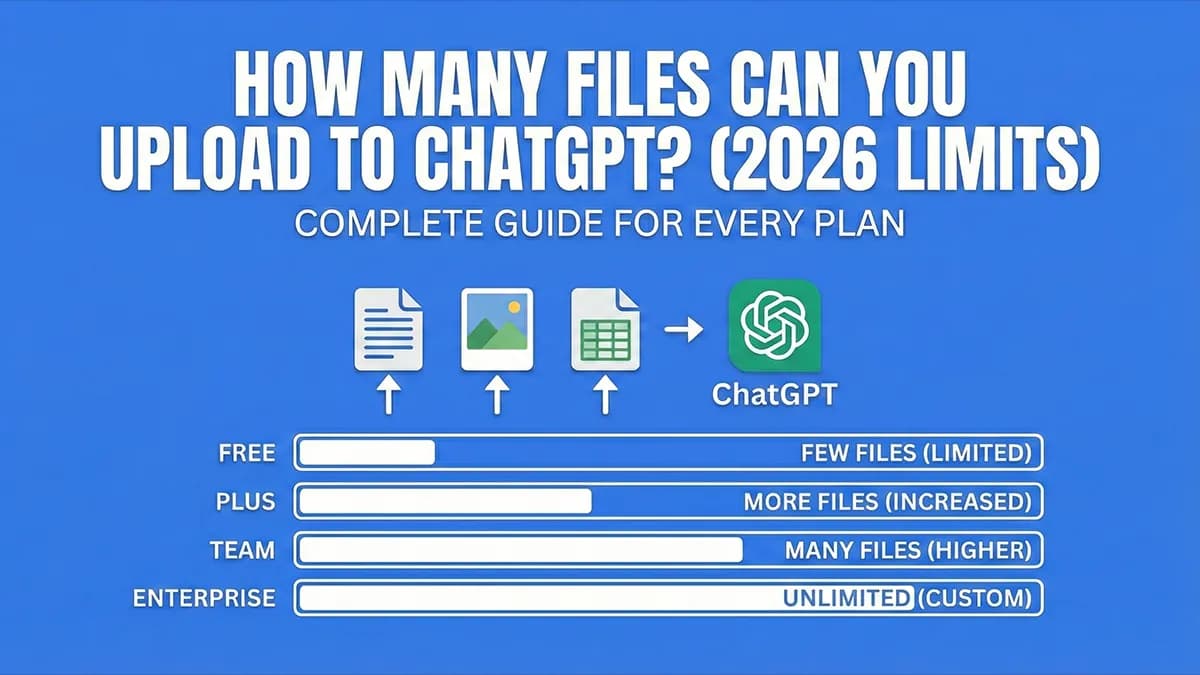
Image source: OneFile
1. The Markdown Strategy
PDFs are notoriously inefficient for AI processing. They contain massive amounts of hidden metadata, formatting code, and layout instructions that consume your 2-million-token limit without adding any informational value. By converting your PDFs to plain Markdown (`.md`) files before uploading, you strip away the bloat. This allows you to fit significantly more actual text into a single file upload.
2. Recursive File Merging
Because ChatGPT limits you to 10 files per prompt, uploading a folder of 50 small text files (like code snippets or daily logs) is impossible through the standard interface. The solution is recursive merging. You can use a simple Python script or open-source tools to concatenate dozens of small files into one massive `corpus.txt` file. By doing this, you consume only 1 of your 10 upload slots, while still providing the AI with all 50 documents worth of context.
3. The Model Context Protocol (MCP)
For advanced users, the Model Context Protocol (MCP) represents a significant advancement in how AI interacts with data. Instead of manually uploading files to the ChatGPT interface, MCP allows you to connect the AI directly to external storage environments (like local hard drives or cloud storage buckets). This effectively bypasses the browser-based upload limits entirely, as the AI queries the external database directly rather than relying on manual file attachments.
What to Do When You See the Upload Limit Reached Error
Encountering an upload error can halt your productivity. When ChatGPT displays the "Upload limit reached. Try again later" message, the ambiguity of "later" can be frustrating. Based on user data, "later" typically ranges from 20 minutes to 6 hours, depending on which specific limit you triggered.
Here is a step-by-step troubleshooting framework:
- Verify your 3-hour usage: Have you uploaded roughly 80 files recently? If so, you have hit the rate limit. The window is rolling, meaning you will slowly regain upload slots minute by minute. Waiting 20 to 30 minutes is usually enough to process a few more files.
- Check your storage capacity: Go to Settings > Storage. If you are at 25GB, you must delete old chats. Waiting will not fix this error.
- Rule out browser caching: Sometimes, the web interface hangs and displays a false limit error. Try logging into the ChatGPT mobile app or using an incognito browser window. If the upload works there, clear your primary browser's cache.
- Optimize spreadsheet formats: If a CSV file is failing, try converting it to a Parquet file. Parquet is a columnar storage format that is highly compressed and much easier for ChatGPT's Python environment to parse quickly, often bypassing timeout errors associated with large spreadsheets.
Frequently Asked Questions
Does ChatGPT Plus have a daily file upload limit?
Can ChatGPT read 25 files at the same time?
How do I compress a PDF for ChatGPT?
Why can't I delete a single file from a chat?
Is there a limit on the number of pages in a PDF?
Final Thoughts on Managing Your ChatGPT Uploads
While OpenAI provides generous file size allowances, the combination of rate limits, token extraction caps, and lifetime storage quotas requires a strategic approach to data analysis. By understanding the underlying mechanics of how ChatGPT processes documents, you can avoid frustrating errors and maintain a smooth workflow.
- Check your file size: Ensure every individual document is under the 512MB hard limit.
- Monitor your token count: Remember that ChatGPT will silently truncate text files that exceed 2 million tokens (roughly 1.5 million words).
- Manage your storage cap: Regularly visit Settings > Storage to clear out old chats and prevent hitting the 25GB lifetime wall.
- Utilize Projects for scale: If you need to reference more than 10 files consistently, use the Projects feature rather than a Custom GPT.
- Merge small files: Combine multiple text documents into a single file to conserve your 10-file per-prompt allowance.
- Convert formats: Switch from PDF to Markdown, or CSV to Parquet, to drastically reduce processing errors.