How to Access and Use Google Gemini Veo 3 for Professional AI Video Generation
As of mid-2026, Google Gemini Veo 3 (now integrated into the ecosystem as Gemini Omni) is accessible to consumers via a Gemini Advanced or Ultra subscription, and to developers via Google AI Studio. The model generates 8-second, 4K resolution video clips with natively synchronized audio and dialogue. To get started, navigate to the Gemini app, ensure your paid subscription is active, and look for the video generation icon in the prompt bar to begin using text-to-video or image-to-video features.
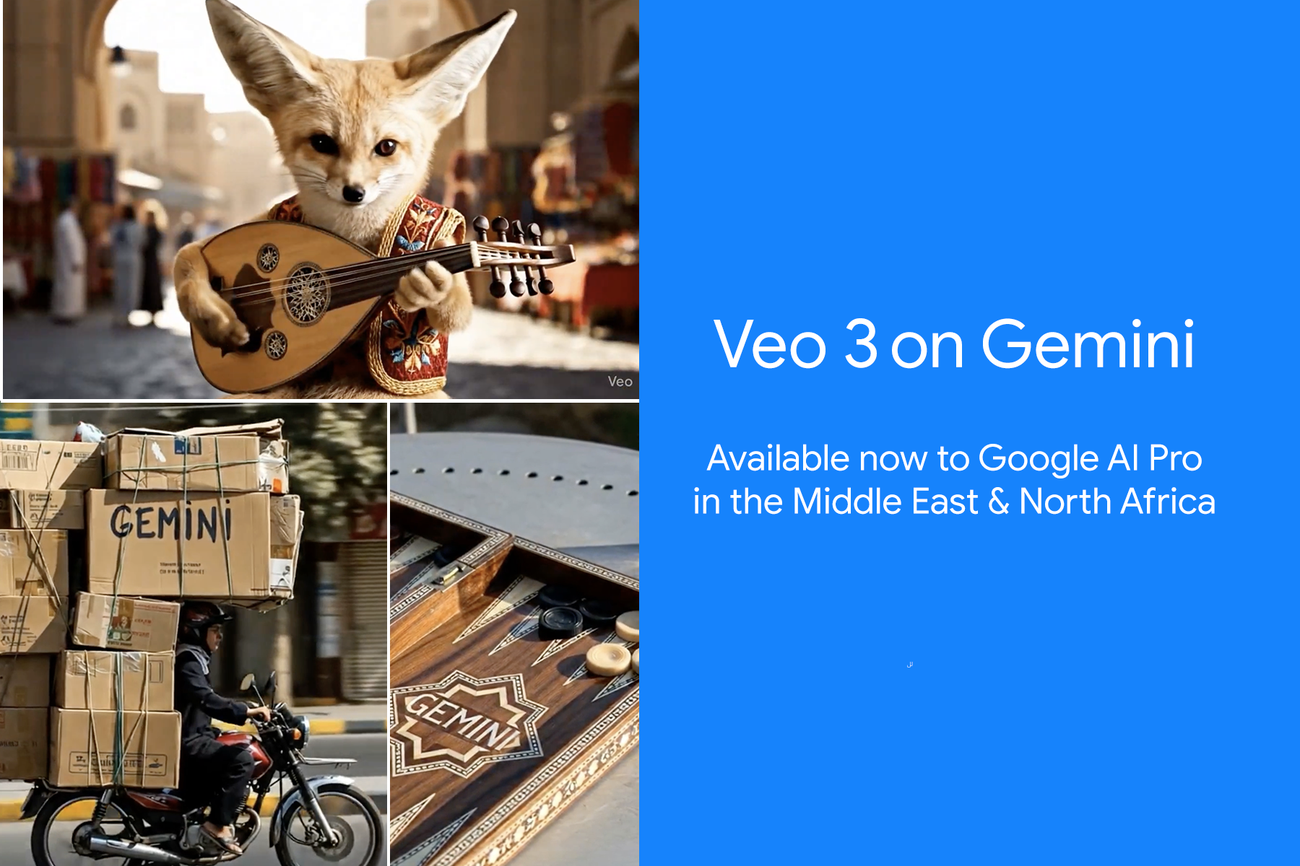
Image source: Google Blog
The landscape of artificial intelligence video generation has matured rapidly. While early models struggled with basic physics and temporal consistency, the release of Google's Veo 3.1 architecture represents a significant advancement in multimodal AI. For creators, marketers, and developers, understanding how to leverage this technology is no longer just an experimental pursuit—it is a core competency.
However, navigating Google's ecosystem can be complex. Between shifting product names, tiered subscription paywalls, and regional rollouts, simply finding the tool can be as challenging as writing the perfect prompt. This comprehensive guide breaks down exactly how to access the model, how to engineer prompts for cinematic quality, and how to troubleshoot the most common access issues.
What Is Google Veo 3 and Why Is It Becoming Gemini Omni?
If you have been following AI news, you might be confused by the terminology. DeepMind developed the underlying video generation model, officially named Veo 3.1. However, as Google integrates this technology into its consumer-facing applications, the branding is shifting toward Gemini Omni.
Gemini Omni (specifically the Omni Flash variant) is the multimodal successor replacing the standalone Veo 3.1 experience within the main Gemini app. This integration means that instead of using a separate video tool, users interact with a single AI agent that can seamlessly switch between text, image, audio, and video generation.
The "Nano Banana" Architecture
A key technical differentiator for Veo 3.1 is its underlying architecture, colloquially referred to in developer circles as the "Nano Banana" structure for video processing. Unlike earlier diffusion models that processed every frame independently, this architecture processes video tokens in a highly compressed, continuous stream. This allows the model to maintain strict temporal consistency—meaning a character's face or clothing won't warp or change colors as they move across the screen.
This efficiency is also what allows Google to offer video generation at scale without the massive rendering wait times associated with earlier platforms. According to DeepMind's official documentation, this architecture is what enables the native generation of synchronized audio alongside the video track.
How to Get Access to Veo 3 Through Gemini Ultra and AI Studio
Accessing Veo 3 depends entirely on your user profile. Google has segmented availability into three distinct paths: Consumer, Developer, and Enterprise.
1. The Consumer Path (Gemini App)
For everyday users and solo creators, Veo 3 is integrated directly into the Gemini web and mobile apps. However, it is locked behind a paywall. You must have an active Gemini Advanced, Pro, or Ultra subscription (typically bundled with the Google One AI Premium plan). Free tier users do not currently have access to video generation capabilities.
2. The Developer Path (Google AI Studio)
Developers and technical creators who want granular control over parameters (like seed numbers and temperature) should use Google AI Studio. By selecting the Veo 3.1 model from the dropdown menu, developers can test prompts and integrate the Gemini API into their own applications. This path often provides earlier access to experimental features before they reach the consumer app.
3. The Enterprise Path (Google Vids & Vertex AI)
For corporate teams, Veo 3 is integrated into Google Vids (part of Google Workspace) and the Vertex AI Media Studio. This tier is designed for collaborative workflows, allowing teams to generate marketing assets directly into shared Google Drives with enterprise-grade data privacy protections.
As of 2026, Google Cloud is offering a specific 3-month extended trial for North American users to test Veo 3 via Vertex AI. This is an excellent option for startups and agencies looking to evaluate the API costs before committing to a full enterprise contract.
Core Technical Specifications You Need to Know
Before generating content, it is crucial to understand the technical boundaries of the Veo 3.1 model. Pushing the model beyond these specifications will result in failed generations or degraded quality.
- Maximum Duration: Base generations are strictly capped at 8 seconds. While this sounds brief, it is the industry standard for high-fidelity AI video to prevent hallucination. These clips can be extended using the "extend" feature, though quality may vary in longer sequences.
- Resolution: The model supports outputs in 720p, 1080p, and full 4K resolution. 4K generation requires significantly more compute time.
- Aspect Ratios: Users can specify Cinematic landscape (16:9) for traditional video or Social portrait (9:16) for platforms like TikTok and YouTube Shorts.
- Native Audio Generation: Unlike many competitors that require a secondary AI tool for sound, Veo 3 natively generates dialogue, sound effects (SFX), and ambient noise that syncs perfectly with the visual action.
- Watermarking: All outputs are embedded with Google's SynthID digital watermark to identify the content as AI-generated, complying with global safety standards.
Image source: Google for Developers Blog
How Does Veo 3 Compare to Sora and Meta MovieGen?
The AI video landscape is highly competitive. Based on recent benchmark data, including the MovieGenBench (which tests 1,003 distinct prompts) and VBench Image-to-Video metrics, Veo 3.1 ranks among the top models currently available, particularly excelling in specific categories.
While OpenAI's Sora is widely regarded as a strong contender for long-form narrative consistency (capable of up to 60-second clips), Veo 3.1 consistently outperforms competitors in Text Alignment—meaning it follows complex, multi-layered prompts more accurately than Meta's MovieGen.
| Feature | Google Veo 3.1 / Omni | OpenAI Sora | Meta MovieGen |
|---|---|---|---|
| Max Resolution | 4K | 1080p | 1080p |
| Max Clip Length | 8s (Extendable) | 60s | 16s |
| Native Audio | Yes (Dialogue & SFX) | No | Yes |
| Availability (2026) | Public (Paid/API) | Limited / Enterprise | Internal / Limited |
| Primary Strength | Prompt Adherence & Ecosystem | Narrative Length | Social Media Integration |
For professional workflows, Veo 3's native audio generation and seamless integration into Google Workspace make it a highly competitive choice, even if its base clip length is shorter than Sora's.
Step-by-Step Guide to Generating Your First 4K Video
Generating high-quality AI video requires more than just typing a basic sentence. It requires structured prompt engineering. According to the DeepMind Veo 3 Prompt Guide, the most successful generations follow a specific anatomical structure.
- Open the Interface: Navigate to the Gemini App (ensure you are on the Advanced/Ultra tier) or Google AI Studio.
- Select the Modality: Click the video generation icon (usually represented by a small clapperboard or film strip) in the prompt bar.
- Structure Your Prompt: Use the formula: Subject + Action + Style + Lighting + Audio Cues.
Example: "A macro shot of a neon green tree frog (Subject) leaping in slow motion off a wet monstera leaf (Action). Shot on 35mm film, cinematic documentary style (Style). High-key lighting with volumetric rays piercing through the jungle canopy (Lighting). Audio: Heavy rain falling on leaves, followed by a sharp croak (Audio Cues)." - Utilize Image-to-Video (I2V): If you have a specific visual in mind, upload up to three reference images. The model will use these images as stylistic anchors, ensuring the generated video matches your desired aesthetic.
- Generate and Refine: Click generate. The process for a 4K video can take a few minutes. Review the output and adjust your prompt keywords if the model hallucinates or misses a detail.
Advanced Cinematic Controls and the First and Last Frame Strategy
One of the most powerful features of Veo 3.1 is its advanced frame control. When relying purely on text, AI models often struggle with narrative arcs—they might start a scene well but end it in a chaotic, morphing mess.
The First and Last Frame Hack
To dictate the exact motion of a scene, you can upload two distinct images: one designated as the "First Frame" and one as the "Last Frame."
For example, if you want a video of a coffee cup tipping over, you upload an image of a full, upright coffee cup as the first frame, and an image of a spilled coffee cup as the last frame. Veo 3 will calculate the physics and motion required to transition smoothly between these two exact states. This is exceptionally useful for creating seamless "match cuts" between different scenes.
Cinematic Language Triggers
The model has been trained on extensive film data. Using specific cinematography terms will trigger precise model behaviors. Instead of saying "move the camera closer," use terms like:
- Dolly Zoom: Creates a vertigo effect by zooming in while physically moving the camera back.
- Low-Angle Tracking Shot: Follows a subject from below, making them appear powerful.
- Rack Focus: Shifts the focus from a subject in the foreground to a subject in the background during the 8-second clip.
How to Create and Use Your Own AI Avatar in Gemini Omni
A highly anticipated feature within the Gemini Omni ecosystem is the AI Avatar capability. This allows creators to generate a "digital twin" that looks and sounds consistent across multiple videos, eliminating the need to re-upload reference photos for every new generation.
To set this up, users navigate to the Avatar settings within Gemini Advanced. You will be prompted to upload a short video of yourself speaking directly to the camera, along with several static photos from different angles. The system processes this data to create a persistent model.
Once established, you can simply type a script, and Veo 3 will generate a video of your avatar delivering the lines with natural lip-syncing and native audio. This feature stands out as a top choice for corporate training videos, personalized sales pitches, and faceless YouTube channels looking for a consistent host.
Why Can't I Access Veo 3? Troubleshooting Common Errors and Paywalls
Despite official announcements, many users encounter roadblocks when trying to access these features. A prominent community support thread highlights several common frustrations. Here is how to resolve them.
The "Subscription Ghosting" Issue
Many users upgrade to Gemini Advanced but still do not see the video generation icon. This is often due to cached account permissions. To fix this, log out of your Google account entirely, clear your browser cache and cookies, and log back in. If using the mobile app, force-stop the application and clear the app data.
Regional Restrictions
As of 2026, Google rolls out multimodal features in geographic tiers. While North America generally receives immediate access, users in the EU, UK, and parts of Asia may face delays due to local AI regulatory compliance. If you are in a restricted region, the feature will simply not appear in your UI, regardless of your subscription tier.
Age and Account Requirements
Veo 3 features enforce a strict 18+ age requirement. Furthermore, if you are using a Google Workspace "Education" account or an enterprise account where the administrator has disabled "Early Access Apps," video generation will be blocked. You must use a personal Google account or have your Workspace admin explicitly enable generative AI features.
Image source: TechWiser
Building a Professional Workflow with Google Vids and Workspace
For enterprise users, Veo 3 is not just a standalone novelty; it is integrated into the broader Google Workspace ecosystem through Google Vids. This integration enables what DeepMind refers to as the "Google Flow."
In this workflow, a marketing team can draft a campaign script in a Google Doc. Using Gemini, that document can be automatically converted into a storyboard within Google Vids. From there, Veo 3 generates the specific video clips required for each storyboard panel. The final assets are automatically saved to a shared Google Drive.
A major concern for corporate users is data privacy. Google explicitly states that for Workspace Enterprise users, the data inputted (prompts, reference images, proprietary scripts) is not used to train Google's public models. Furthermore, Workspace users receive certain indemnification protections against copyright claims regarding generated outputs, making it a safer choice for commercial deployment.
Frequently Asked Questions
Is Google Veo 3 free to use?
Can Veo 3 generate videos longer than 8 seconds?
Does Veo 3 include sound and dialogue?
What is the difference between Veo 3 and Sora?
Why don't I see the video icon in my Gemini app?
Key Takeaways and Next Steps
The transition from Veo 3 to Gemini Omni represents a major step forward in multimodal AI, offering creators powerful tools for high-fidelity video production. By understanding the technical constraints and mastering prompt engineering, you can significantly elevate your digital content.
- Access requires a premium tier: Ensure you have a Gemini Advanced subscription or use Google AI Studio for developer access.
- Master the 8-second limit: Plan your scenes around the 8-second base generation, using the extend feature only when necessary.
- Leverage native audio: Always include specific audio cues in your prompts to take advantage of synchronized sound effects and dialogue.
- Use frame controls: Utilize the First and Last Frame image-to-video strategy to force the AI to create smooth, logical transitions.
- Check regional availability: If features are missing, verify that your geographic location and account age settings comply with Google's current rollout phases.
To get started immediately, log into your Gemini Advanced account, select the video generation icon, and test a prompt using the "Subject + Action + Style + Lighting + Audio" formula.