
How to Access and Use Veo 3 in Gemini to Create 4K AI Videos
To use Google's Veo 3.1 model for high-fidelity video generation, you need a Gemini Advanced, Ultra, or Pro subscription. Open the Gemini app, enter a descriptive prompt starting with "Generate a video of...", and ensure your settings are toggled to "Highest Quality" to enable 4K resolution and native audio synchronization. Developers can also access the model via Google AI Studio.
Image source: Google Blog
Where Can You Find Veo 3 Inside the Gemini Ecosystem?
Navigating Google's AI product landscape can occasionally feel like a maze, especially with rapid updates. As of mid-2026, the Veo 3.1 model is not a standalone application you can download. Instead, it serves as the underlying video generation engine powering several distinct platforms within the Google ecosystem.
Depending on your needs—whether you are a casual creator, a software developer, or an enterprise user—your access point will vary:
For most consumers, this is the primary entry point. Veo 3 is available to users subscribed to the Gemini Advanced, Ultra, or Pro tiers. Free-tier users currently do not have access to the full Veo 3.1 capabilities and may be routed to older, lower-resolution models.
Developers and technical users can access the model directly via Google AI Studio. By selecting the veo-3.1-generate-preview model, users gain granular control over parameters like frame-specific generation and reference image weighting.
For enterprise and Google Workspace users, Veo 3 is integrated into Google Vids. This allows teams to generate B-roll, presentation backgrounds, and internal communication videos directly within their workflow without needing external rendering software.
For those building third-party applications, the model is available in a "paid preview" state through the Gemini API documentation. This allows programmatic access for bulk generation and custom app integration.
What Are the Core Capabilities of the Veo 3.1 Model?
Before diving into complex workflows, it is essential to understand the technical boundaries of the Veo 3.1 architecture. According to Google DeepMind's technical overview, the model was built from the ground up to address the common shortcomings of earlier AI video generators, specifically regarding temporal consistency and resolution.
The most notable specifications include:
- Resolution and Fidelity: Veo 3.1 supports up to 4K resolution output. It demonstrates highly advanced physics simulation, meaning elements like fluid dynamics (water splashing), fabric movement, and lighting reflections behave realistically across frames.
- The 8-Second Limit: Currently, a single generation prompt yields a maximum of 8 seconds of video. While this may seem brief, it is a standard limitation across current-generation diffusion models due to the immense computational power required to render high-fidelity frames.
- Native Audio Integration: This is arguably Veo 3.1's most significant advancement. Older models required users to generate video first, then use a separate tool (like ElevenLabs or Suno) to generate sound effects. Veo 3.1 generates synchronized dialogue, sound effects (SFX), and ambient noise natively alongside the video track.
- Aspect Ratio Flexibility: The model natively supports Landscape (16:9) for traditional viewing and Portrait (9:16) formats, making it highly adaptable for YouTube Shorts, TikTok, and Instagram Reels without requiring post-generation cropping.
How to Enable 4K Resolution and Native Audio in Your Settings
One of the most frequent complaints found on community forums is that Veo 3 produces silent, 720p videos. In almost all cases, this is not a bug with the model, but rather a default setting designed to save Google's server compute power.
By default, Gemini often routes video requests through a "Fast" generation mode. To unlock the full potential of Veo 3.1, you must manually adjust your generation parameters.
Step-by-Step Activation
- Open the Gemini App or Google AI Studio interface and initiate a new chat or project.
- Before typing your prompt, locate the Settings gear icon (usually in the top right corner or adjacent to the prompt box).
- Navigate to the Video Generation Preferences tab.
- Locate the Generation Speed vs. Quality toggle. It is typically set to "Auto" or "Fast" by default.
- Switch this toggle to "Highest Quality".
- Ensure the "Enable Native Audio" checkbox (if visible in your specific UI version) is ticked.
Be aware that selecting "Highest Quality" will increase your generation time. A standard 8-second 4K clip may take anywhere from 2 to 5 minutes to render, depending on server load.
Image source: TechWiser
The Secret to Writing Cinematic Prompts for Better Video Results
AI video models interpret text differently than AI image generators. A prompt that produces a stunning still image in Midjourney or Imagen 3 might result in a static, lifeless video in Veo 3. To get dynamic results, you need to write prompts that direct the "camera" and the "audio environment."
Based on internal prompting documentation, the most effective Veo 3 prompts follow a specific anatomical structure: Subject + Action + Camera Movement + Lighting + Emotional Context + Audio Cue.
Camera Control Keywords
To force the model to create motion rather than a static shot, incorporate specific cinematography terms into your prompt:
- Tracking shot: "A low-angle tracking shot following a runner through a dense forest."
- Dolly zoom: "A dolly zoom on a detective's face as he realizes the truth, background compressing."
- Handheld jitter: "Handheld camera jitter, documentary style, following a chef in a chaotic kitchen."
- Drone sweep: "A high-altitude drone sweep over a futuristic neon city."
Sound Design Prompting
Because Veo 3.1 generates native audio, you should explicitly describe what you want to hear. Do not leave the audio to chance. Add a dedicated sentence at the end of your prompt for sound design.
Example: "A close-up of heavy rain hitting a tin roof. Audio: The crisp, rhythmic drumming of rain on metal, with distant rolling thunder and the faint sound of a howling wind."
Using Reference Images
If you are using Google AI Studio, you have a distinct advantage: multimodal input. You can upload up to 3 reference images alongside your text prompt. This is highly recommended for maintaining character consistency or matching a specific visual style (e.g., uploading a sketch of a character and prompting Veo to animate them in a 3D Pixar style).
How to Create Videos Longer Than 8 Seconds Using the Extension Strategy
The 8-second limit is widely regarded as the primary bottleneck for AI filmmakers. However, power users have developed a reliable workaround known in developer communities as the "Extension Strategy" or the "Google Flow."
This method utilizes the Gemini API's "Video Extension" feature, which allows you to use the final frame of one video as the initial frame of the next, effectively stitching clips together seamlessly.
The "Google Flow" Workflow
- Generate Clip A: Write your initial prompt and generate your first 8-second video.
- Extract the Final Frame: Using Google AI Studio (or a third-party tool built on the API), select the option to use the last frame of Clip A as an image input.
- Prompt Clip B: Write a new prompt for the next 8 seconds. Crucial step: The prompt must logically follow the action of the extracted frame. If Clip A ended with a character opening a door, the prompt for Clip B should be "Character walks through the open door into a bright room."
- Generate and Stitch: Generate Clip B. Because it uses the exact pixel data from the end of Clip A as its starting point, you can stitch them together in any standard video editor (like Premiere Pro or DaVinci Resolve) with a seamless transition.
By repeating this process, creators can build sequences that last for minutes, maintaining visual consistency across the entire narrative.
Veo 3 vs. Gemini Omni — What Is the Difference?
If you read tech blogs, you will frequently see the terms "Veo 3" and "Gemini Omni" used interchangeably. This causes significant confusion. According to the Gemini Omni overview, they are not the same thing; they represent different layers of the technology stack.
Veo 3.1 is the Engine: It is the underlying machine learning model that processes text and pixels to generate video. It is the raw computational brain.
Gemini Omni is the Wrapper: Omni is the upcoming multimodal interface and user experience that sits on top of Veo. As Google transitions users to the Omni interface, new capabilities will be unlocked that go beyond simple text-to-video.
When fully rolled out, Gemini Omni will introduce Video-to-Video Editing. This means you will be able to upload an existing video and prompt the AI to alter it—for example, "Change the color of the car from red to blue" or "Replace the city background with a Martian landscape"—without altering the core subject's movement. Omni is also expected to introduce real-time AI Avatars for interactive video generation.
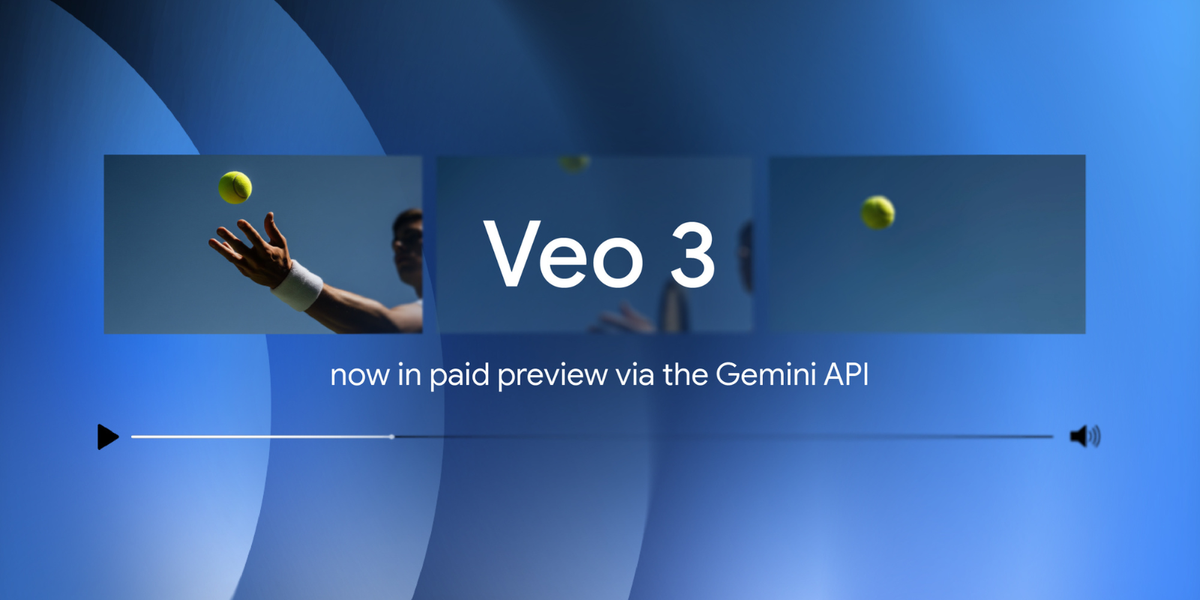
Image source: Google for Developers Blog
How Does Veo 3 Compare to Sora and Runway Gen-3?
The AI video landscape is highly competitive. To understand where Veo 3.1 fits, it is helpful to look at how it compares to its primary rivals: OpenAI's Sora and Runway's Gen-3 Alpha.
According to Google's internal testing on the MovieGenBench (a standardized benchmark using 1,003 diverse prompts), Veo 3.1 ranks among the top models for human preference, particularly in areas of prompt adherence and realism. However, each tool has distinct strengths.
| Feature | Google Veo 3.1 | OpenAI Sora | Runway Gen-3 Alpha |
|---|---|---|---|
| Max Length (Single Gen) | 8 Seconds | Up to 60 Seconds | 10 Seconds |
| Native Audio | Yes (Dialogue, SFX, Ambient) | Limited / In Development | No (Requires external tools) |
| Ecosystem Integration | Deep (Workspace, Gemini, Vids) | ChatGPT Plus / API | Standalone Web App / API |
| Primary Strength | Audio sync & prompt adherence | Long-form temporal consistency | Cinematic styling & camera control |
When to Choose Veo 3.1
Veo 3.1 is a top-tier option if you require native, synchronized audio. The ability to generate a video of a person speaking with matching lip movements and background noise in a single pass is a major workflow improvement. It is also the logical choice for users already embedded in the Google Workspace ecosystem, as the integration with Google Vids streamlines the creation of business presentations.
How to Manage Your Daily Generation Limits and Quotas
High-fidelity video generation is incredibly expensive from a server perspective. As a result, Google imposes strict quotas on Veo 3 usage, even for paying subscribers.
Standard Gemini Pro users typically receive a trial allocation—often reported as 10 generations per day. Furthermore, the system implements a "Cooldown Period." If you generate 5 videos consecutively in a short timeframe, you may be temporarily throttled and asked to wait before generating more.
For developers using the API, the Google Developers Blog outlines the "paid preview" pricing structure, which charges per second of generated video. Monitoring your API dashboard is critical to avoid unexpected compute charges.
Common Problems and How to Fix Them
Even state-of-the-art models have quirks. Here are the most common issues users encounter with Veo 3.1 and how to resolve them.
1. Safety Filter Triggers
Google employs strict safety guardrails (including SynthID watermarking). If your prompt is rejected, it is likely triggering a safety filter. Avoid words associated with violence, explicit content, or real-world political figures.
Fix: Soften your language. Instead of "A brutal fight in an alleyway," use "An intense, dramatic martial arts choreography sequence in a dimly lit street."
2. The "Melting" Artifact Bug
Occasionally, background characters or complex objects (like hands or bicycle spokes) will warp or "melt" as the video progresses.
Fix: This usually happens when the model lacks specific instructions for those elements. Increase your "Prompt Strength" setting if available, and add stabilizing keywords like "hyper-realistic," "anatomically correct," and "stable composition" to your prompt.
3. Audio Sync Issues
Sometimes the generated dialogue does not perfectly match the lip movements of the character.
Fix: Use the "Frame-specific generation" tool in AI Studio. By defining the character's face clearly in the first frame and keeping the camera movement minimal (e.g., "locked-off tripod shot"), the model has an easier time mapping the audio waveform to the lip pixels.
Image source: Wisdomplexus
Frequently Asked Questions
- Is Google Veo 3 free to use?
- Veo 3 is not entirely free. Within the Gemini app, it requires a paid subscription to Gemini Advanced, Ultra, or Pro. However, developers can access limited free tiers for testing the `veo-3.1-generate-preview` model via Google AI Studio, though these come with strict rate limits and watermarking.
- Can I use Veo 3 for commercial projects?
- Yes, output generated by paid tiers of Veo 3 can generally be used for commercial projects, provided the content adheres to Google's Terms of Service. All Veo 3 videos are embedded with SynthID, an invisible digital watermark that identifies the content as AI-generated, which promotes transparency in commercial use.
- Does Veo 3 actually support 4K resolution?
- Yes, Veo 3.1 supports 4K resolution, but it is not always the default output. Users must manually select the "Highest Quality" setting in their generation preferences. If left on "Auto" or "Fast," the model will typically output 720p or 1080p to conserve processing time.
- How do I get the API key for Veo 3.1?
- To get an API key, you must navigate to Google AI Studio, sign in with your Google Developer account, and create a new project. From the dashboard, you can generate an API key that grants access to the Gemini API, including the Veo 3.1 paid preview endpoints.
- Why is my video only 8 seconds long?
- The 8-second limit is a hard constraint of the current Veo 3.1 architecture. Generating high-fidelity, temporally consistent video with synchronized audio requires massive compute power. To create longer videos, you must use the "Video Extension" feature to stitch multiple 8-second generations together.
- Why does my Veo 3 video have no sound?
- Missing audio is almost always caused by the generation speed settings. If your account is set to "Fast" mode, the model skips the audio generation phase to deliver the video quicker. Switch your settings to "Highest Quality" to ensure native audio is generated.
Final Thoughts on Mastering Veo 3
Google's Veo 3.1 represents a significant advancement in the AI video space, particularly with its integration of native, synchronized audio. While the 8-second limit requires some creative workarounds, mastering the settings and prompt structure unlocks a highly capable production tool.
- Always toggle to "Highest Quality" mode if you want 4K resolution and native sound design.
- Utilize the Extension Strategy (stitching the last frame to the first frame) to bypass the 8-second limitation for long-form storytelling.
- Structure your prompts cinematically: define the subject, action, camera movement, lighting, and explicit audio cues.
- Leverage reference images in Google AI Studio to maintain character and stylistic consistency across multiple clips.
- Manage your quotas by enabling Single Output Mode, preventing the system from burning credits on unwanted variations.
