How to Download and Use the Official NotebookLM Apps on All Your Devices
As of 2026, Google offers dedicated mobile applications for NotebookLM. You can download the official app for Android devices (running Android 10+) directly from the Google Play Store, and for iOS devices (running iOS 17.0+) from the Apple App Store. For desktop users on Windows or Mac, NotebookLM operates via a Progressive Web App (PWA) installed through your browser, as no native desktop executable currently exists.
What began as an experimental project in Google Labs has matured into a robust, multi-platform ecosystem. The transition from a browser-only tool to dedicated mobile applications has significantly changed how researchers, students, and professionals interact with their data. By moving processing closer to the user and integrating deeply with mobile operating systems, the NotebookLM apps offer a highly effective way to digest complex information on the go.
This article details exactly how to install the apps across your devices, configure the settings for optimal performance, and integrate the tool into advanced productivity workflows.
Where can you download the official NotebookLM apps?
Finding the correct version of the app is the first step to building your AI-assisted research library. Because NotebookLM handles complex document parsing and audio generation, the mobile applications have specific hardware and operating system requirements.
Android Requirements and Availability
The Android version of NotebookLM is available globally in over 150 countries. To install it, your device must be running Android 10 or later. This requirement ensures that the device has the necessary background processing capabilities to handle local caching and seamless audio playback.
You can find the application by searching "Google NotebookLM" in the Play Store, or by navigating directly to the official Google Play Store listing. Ensure the developer is listed as "Google LLC" to avoid third-party wrapper apps.

Image source: Google Play
iOS and iPadOS Requirements
For Apple users, the application requires iOS 17.0 or later (or iPadOS 17.0+). The iOS rollout has been slightly more staggered than Android, though it currently supports 65 languages, including Afrikaans, Gujarati, and Vietnamese. The strict iOS 17 requirement is tied to how the app utilizes Apple's newer background audio APIs for the Audio Overview feature.
Download the app directly from the Apple App Store. The iPadOS version is particularly notable, as it features a multi-pane layout that allows you to view your source documents side-by-side with the AI chat interface.
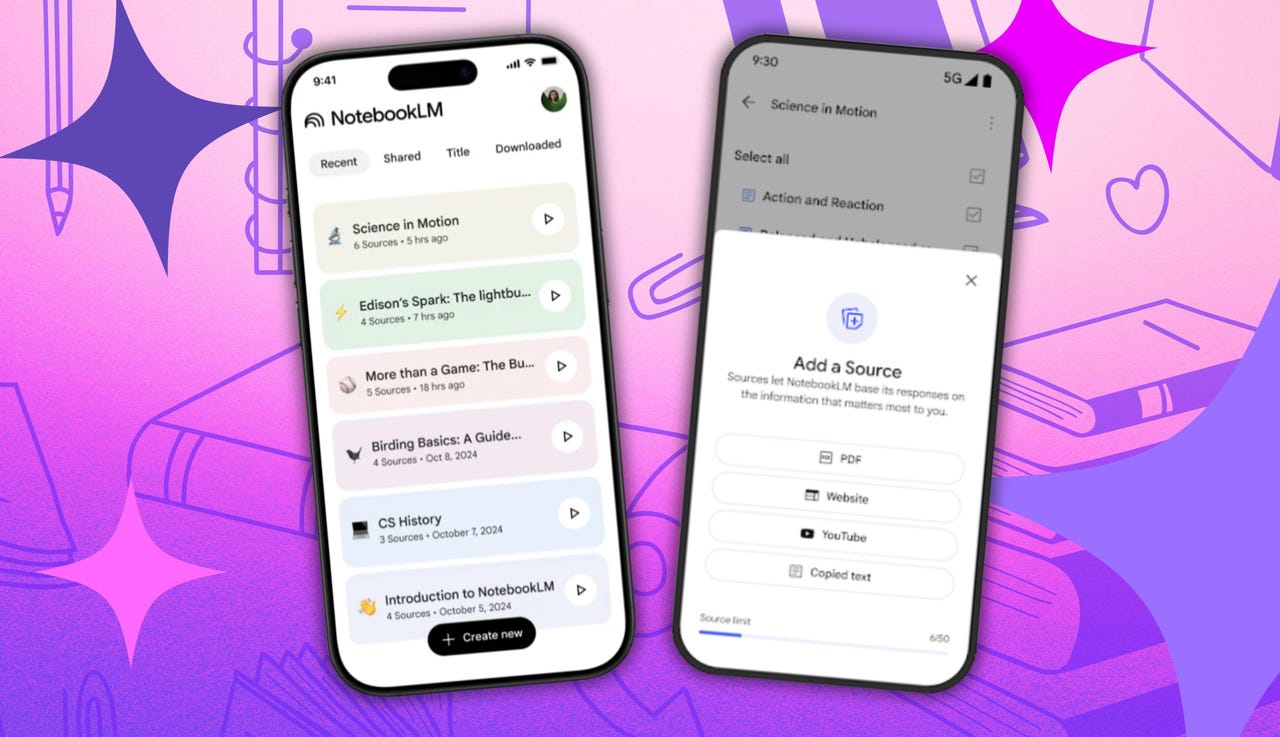
Image source: ZDNET
How to set up NotebookLM on your mobile device
Once downloaded, setting up the application requires a few specific steps to ensure your data syncs correctly across your Google ecosystem.
The First-Time Login Process
Upon opening the app, you will be prompted to sign in with a Google account. It is crucial to choose the correct account type. If you use a personal Google account, your notebooks will sync with your personal Google Drive storage limits. If you log in with an Enterprise or Google Workspace for Education account, your data falls under strict organizational privacy policies (more on this in the privacy section below).
According to Google's mobile setup documentation, users switching between personal and work accounts must create separate notebooks, as cross-account notebook sharing is restricted by default to prevent data leakage.
Mastering the "Share to NotebookLM" Feature
One of the most significant advantages of the mobile app over the web version is its integration with the native OS share sheet. This transforms how you collect research.
- Browsing the Web: When reading an article in Chrome or Safari, tap the native "Share" icon and select the NotebookLM app icon.
- Selecting a Destination: The app will overlay a menu asking if you want to add the link to an existing notebook or create a new one.
- Processing YouTube Videos: You can share directly from the YouTube mobile app. NotebookLM will instantly ingest the video's transcript and add it as a grounded source.
- Handling PDFs: If someone emails you a PDF, you can share it directly from your mail app into NotebookLM without needing to save it to your local files first.
Enabling Offline Support
While NotebookLM relies on cloud processing to generate new answers and audio, the mobile apps offer limited offline support. By toggling the "Keep Offline" switch in a specific notebook's settings, the app will cache your source documents and previously generated Audio Overviews. This allows you to read your PDFs and listen to your AI-generated podcasts while commuting or flying without an active internet connection.
Can you use NotebookLM as a desktop app?
A common point of confusion for new users is the lack of a native `.exe` file for Windows or a `.dmg` file for macOS. Google has opted not to build traditional desktop applications for NotebookLM. However, you can achieve a near-identical experience using a Progressive Web App (PWA) workaround.
The PWA Installation Workaround
A PWA allows a website to behave like a standalone application on your computer. It removes the browser address bar, allows you to pin the icon to your taskbar or dock, and manages windows independently of your main browser.
To set this up on Google Chrome or Microsoft Edge:
- Open your browser and navigate to the official NotebookLM web interface.
- Log in to your account and access your dashboard.
- In Chrome, click the three-dot menu in the top right corner, select "Save and share", and then click "Install NotebookLM". (In Edge, go to Apps > Install this site as an app).
- A prompt will appear confirming the installation. Click "Install."
Once installed, NotebookLM will open in its own clean window. This is widely considered one of the most efficient ways to use the tool on a desktop, as it prevents your research from getting lost among dozens of open browser tabs.
What are the top features in the NotebookLM mobile app?
The mobile applications bring several unique features to the forefront, transforming NotebookLM from a simple text analyzer into a multimodal learning hub.
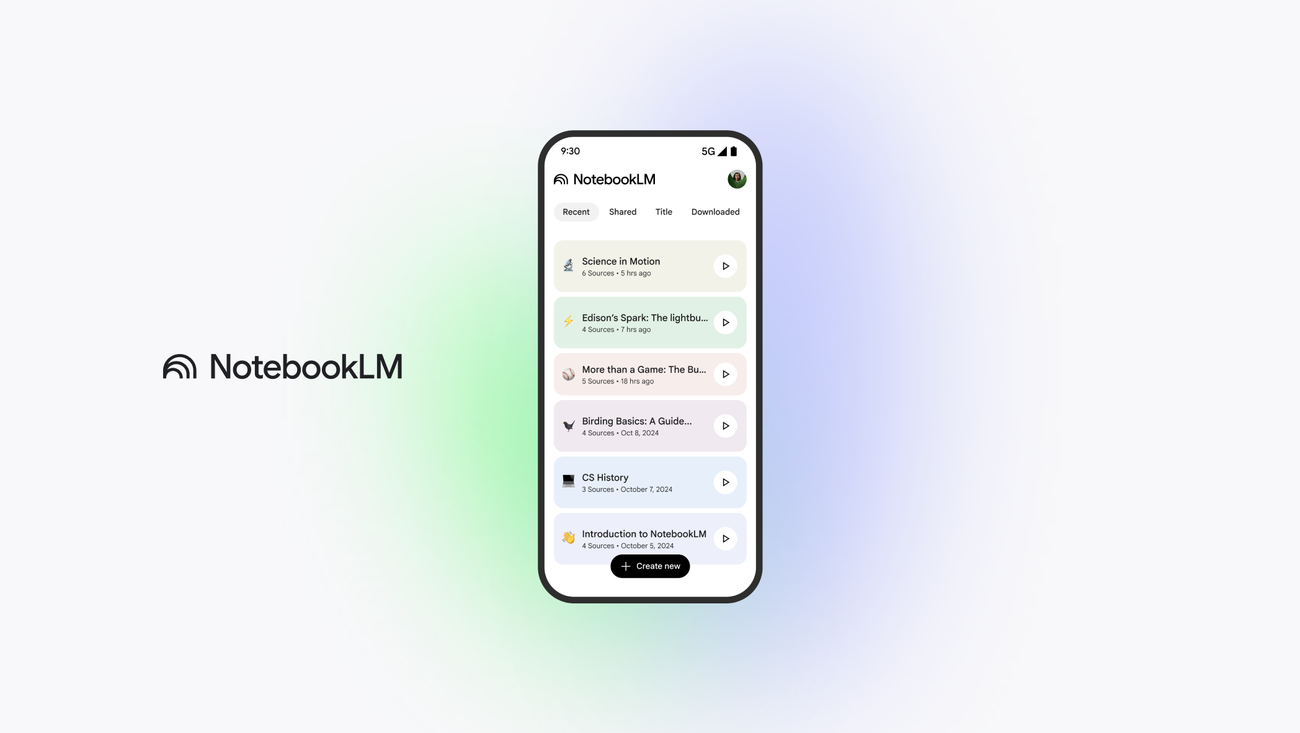
Image source: Google Blog
Audio Overviews on the Go
The standout feature of the mobile app is the "Audio Overview." NotebookLM can synthesize your uploaded sources into a conversational, two-host podcast. On mobile, this feature supports background playback, meaning you can lock your screen or open other apps while listening to a deep dive into your own research documents.
Recent updates have introduced the ability to customize these audio formats. Users can now select from three distinct modes:
- Brief: A rapid, 3-5 minute summary focusing strictly on the core facts without conversational banter.
- Critique: The AI hosts actively look for logical gaps, biases, or missing information within your sources, rather than just summarizing them.
- Debate: The hosts take opposing viewpoints on the subject matter presented in your documents, which is highly effective for preparing for academic defenses or business negotiations.
The Learning Guide AI Tutor
For students, the mobile app includes a "Learning Guide" feature. Instead of simply giving you the answer to a question found in your textbook PDF, the AI Tutor acts as a Socratic guide. It will break down complex problems—such as calculus equations or historical timelines—into step-by-step interactive prompts, forcing the user to engage with the material.
Automated Flashcards and Quizzes
When you upload a dense document, the app can automatically generate a deck of digital flashcards and multiple-choice quizzes. On the mobile app, these are presented in a swipeable, touch-friendly interface, making it an excellent tool for quick study sessions.
How to sync NotebookLM with the Gemini app
As of 2026, Google has bridged the gap between its general-purpose AI (Gemini) and its specialized research AI (NotebookLM). The new "Notebooks in Gemini" feature allows power users to move data seamlessly between the two platforms.
According to a recent Google Blog announcement, this integration is designed to let users take the highly grounded, factual research generated in NotebookLM and push it into Gemini for creative expansion, such as drafting emails, writing essays, or generating code based on the research.
Subscription Tier Differences
While the core NotebookLM app remains free, the Gemini sync and advanced processing features are tied to Google AI subscription tiers. Here is how the tiers compare:
| Feature | Free Tier | Google AI Plus ($4.99) | Google AI Pro ($19.99) |
|---|---|---|---|
| Storage Capacity | Standard Drive Limits | 400 GB | 5 TB |
| Gemini App Sync | No | Yes | Yes |
| Audio Overviews | Standard Queue | Priority Processing | Priority Processing |
| Cinematic Video Overviews | No | Yes | Yes |
The introduction of "Cinematic Video Overviews" for Plus and Pro users allows the AI to generate visual slide presentations accompanied by audio, which can then be exported directly into Google Slides or Gemini for further editing.
Advanced workflows to pair NotebookLM with other productivity apps
To get the most out of the NotebookLM apps, many professionals integrate them into a larger "tech stack." Based on community discussions and expert workflow breakdowns, here are four highly effective ways to pair the app with other tools.
Zotero + NotebookLM: Researchers use Zotero for strict citation and reference management. By exporting a Zotero collection as a single PDF (with embedded notes), you can upload it to NotebookLM. NotebookLM then becomes a conversational interface for your entire literature review, allowing you to ask, "Which of these papers contradicts Smith's 2024 findings?"
Calibre + NotebookLM: Calibre is a popular eBook manager. Users convert their DRM-free EPUB files into PDFs via Calibre and upload them to a dedicated Notebook. This effectively makes your personal library fully searchable, allowing you to query character arcs or thematic elements across multiple books simultaneously.
NotebookLM + Gamma: NotebookLM is excellent at factual grounding but lacks native design tools. Users will prompt NotebookLM to generate a detailed, source-backed presentation outline, copy that text, and paste it into an AI presentation builder like Gamma to instantly generate visually appealing slides.
NotebookLM + Distilbook: While Google offers basic video overviews, many creators prefer to use NotebookLM to write a highly accurate script based on source documents, and then feed that script into third-party animation tools like Distilbook to create controlled, animated explainer videos.
Expert prompting tips to get better results from the app
Because NotebookLM is designed to be "grounded" in your documents, standard ChatGPT-style prompts often yield suboptimal results. To extract the most value from the app, prompt engineering must be adjusted.
The TCREI Framework
Advanced users frequently rely on the TCREI framework to structure their queries. This ensures the AI understands exactly how to interact with the uploaded sources:
- Task: State exactly what you want (e.g., "Write a comparative summary").
- Context: Explain the goal (e.g., "This is for a first-year biology study guide").
- References: Point to specific documents (e.g., "Focus only on Source 2 and Source 4").
- Evaluate: Tell the AI how to judge the information (e.g., "Highlight any conflicting data between the two sources").
- Iterate: After the first response, refine the output (e.g., "Now rewrite that summary to be 50% shorter").
To completely stop the AI from making creative leaps or hallucinating connections that don't exist in your documents, always end your prompt with this exact phrase: "The information you provide must explicitly come from the provided sources. If the answer is not explicitly stated in the text, reply with 'I do not know based on these sources.'"
Steering the Podcast Hosts
When generating an Audio Overview, you are not entirely at the mercy of the AI's default script. Before clicking "Generate," you can provide a steering prompt. For example, you can type: "Focus the audio discussion entirely on the financial implications mentioned in chapter 4, and maintain a serious, academic tone." This forces the hosts to abandon their usual casual banter and focus strictly on the parameters you set.
Is your data safe in the NotebookLM app?
Given that users frequently upload proprietary business documents, unpublished manuscripts, and personal financial records, data privacy is a primary concern.
Google has established clear boundaries regarding how NotebookLM handles user data. If you are using a Google Workspace Enterprise or Education account, your data is strictly siloed. Google explicitly states that your uploads, queries, and generated responses are never used to train their base AI models.
For users on Individual (Personal) Google accounts, the privacy policy is similar, with one caveat: your data is not used for model training unless you actively submit it via the "Thumbs Up/Thumbs Down" feedback mechanism. If you do not manually submit feedback, your documents remain private to your account and are not reviewed by human raters or used for broader machine learning purposes.
Frequently Asked Questions
- Is there an official Google NotebookLM app for Windows or Mac?
- No, Google has not released a native desktop application (.exe or .dmg) for NotebookLM. However, desktop users can achieve a similar experience by installing the web version as a Progressive Web App (PWA) through Chrome or Edge, which allows it to run in a dedicated window.
- Can I use NotebookLM offline through the mobile app?
- Yes, but with limitations. By enabling the "Keep Offline" toggle in a specific notebook, the app will cache your uploaded documents and previously generated Audio Overviews, allowing you to read and listen without an internet connection. However, you cannot generate new AI responses or new audio while offline.
- Does the app support languages other than English?
- Yes, the NotebookLM mobile apps currently support 65 languages. You can upload documents in various languages, and the interface, as well as the chat responses, can operate in languages ranging from Spanish and French to Vietnamese and Gujarati.
- What is the maximum file size for uploads?
- Upload limits are tied to your Google account type and current Google Labs restrictions. Generally, individual text-based PDFs can be quite large (often up to 100MB or 500,000 words per document), but users should check the official documentation as these limits frequently adjust as the platform scales.
- How do I fix the "Audio Overview too long" issue?
- If you find the AI podcast hosts are drawing out the topic unnecessarily, you can use the new customization settings before generating the audio. Select the "Brief" format, or provide a steering prompt instructing the AI to "keep the discussion under 5 minutes and focus only on the core thesis."
Final Thoughts
The transition of NotebookLM from a web-based experiment to a fully featured mobile application has made it a highly competitive option for anyone managing large volumes of information. By leveraging the mobile-specific features, you can turn passive reading into an interactive, multimodal learning experience.
- Download officially: Always use the Google Play Store (Android 10+) or Apple App Store (iOS 17.0+) to avoid third-party clones.
- Use the PWA for desktop: Install the web version via Chrome or Edge to create a clean, distraction-free desktop workspace.
- Leverage the Share Sheet: Use your mobile device's native share menu to instantly send web pages, PDFs, and YouTube videos directly into your notebooks.
- Customize your audio: Move beyond the default podcast style by using the Brief, Critique, or Debate modes to suit your specific learning needs.
- Apply the TCREI framework: Structure your prompts with Task, Context, References, Evaluate, and Iterate to get highly accurate, grounded responses.
- Sync for advanced tasks: If you are a power user, utilize the Gemini sync feature to move your grounded research into a broader generative AI environment.