How to Generate Realistic AI Voices for Free Using Google AI Studio
aistudio.google.com, sign in with your Google account, select the "Generate Speech" tool, type your script, and use bracketed tags like [whispers] to control the emotional delivery of over 30 neural voices.
As of mid-2026, the landscape of text-to-speech (TTS) technology has shifted significantly from robotic, monotone outputs to highly expressive, context-aware neural generation. At the center of this shift is Google AI Studio, a developer and creator environment that provides direct access to Google's latest multimodal models.
While many content creators default to paid subscriptions for voiceover work, Google AI Studio offers a robust, zero-cost alternative for prototyping and generating high-quality audio. This guide explores how to navigate the platform, utilize advanced prompting techniques to direct AI voice actors, and troubleshoot common errors that interrupt the generation process.
What Is the Google AI Studio Voice Generator?
The Google AI Studio voice generator is not a standalone consumer application; rather, it is a feature within Google's broader AI prototyping environment. It allows users to interact directly with the Gemini 1.5 Flash TTS model, which serves as the underlying engine for the platform's audio synthesis capabilities.
Unlike older text-to-speech systems that simply map text characters to phonetic sounds, the Gemini 1.5 Flash TTS model utilizes predictive neural architecture. This means the AI reads the entire sentence to understand context, tone, and intent before generating the audio. If a sentence ends with a question mark, the pitch naturally rises. If the text describes a somber event, the pacing automatically slows.
The platform is built upon the Chirp 3 model architecture, which was specifically designed for low-latency streaming and spontaneous conversational voices. In practical terms, this provides users with access to over 30 distinct neural voices across more than 70 languages. Because it is housed within AI Studio, the tool is primarily intended for developers building applications and creators prototyping workflows, offering generous rate limits at no financial cost.
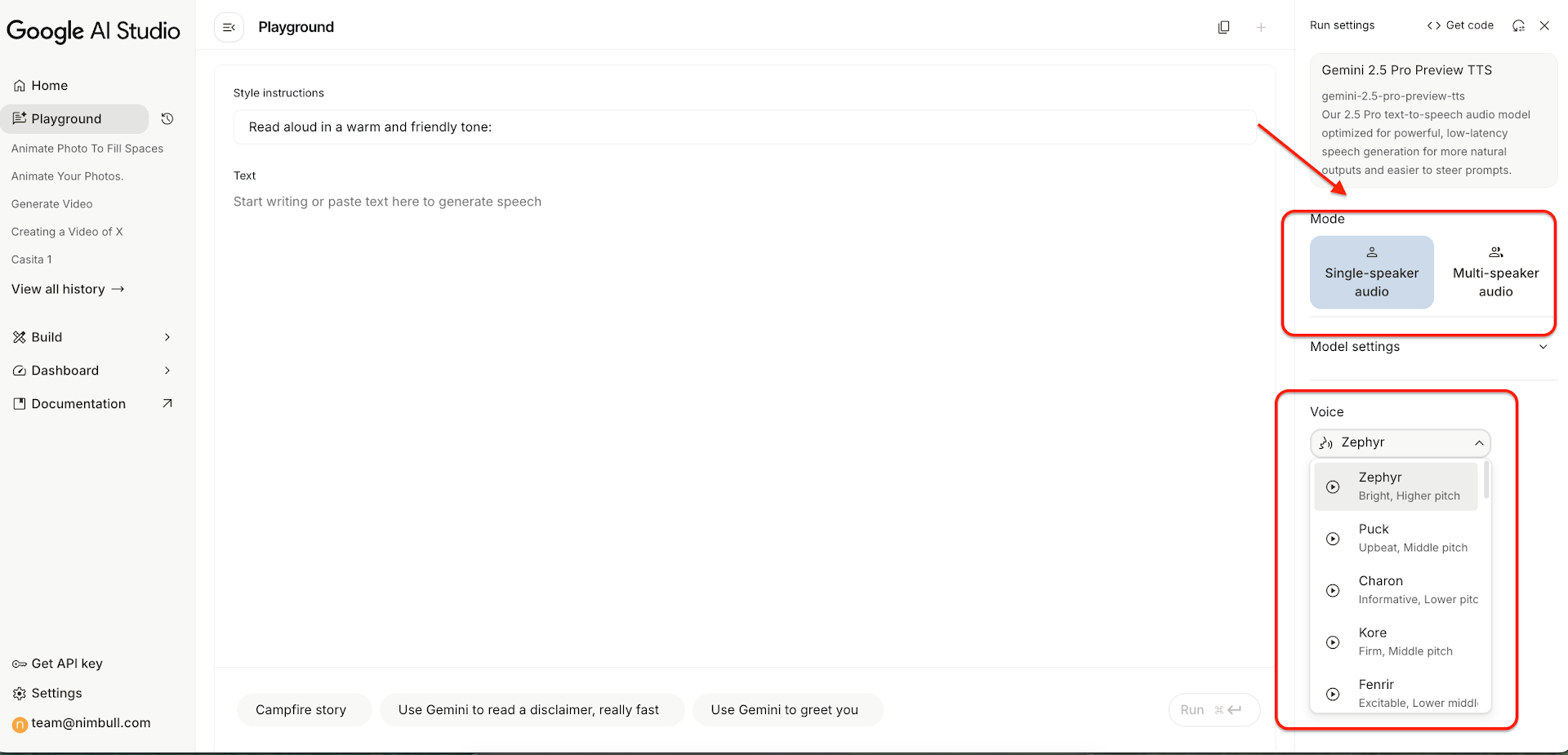
Image source: Nimbull
How to Access the Speech Generation Tool
Because Google AI Studio is designed for developers, finding the specific text-to-speech interface requires a few specific steps. You do not need to know how to code to access or use these tools, but you do need a standard Google account.
Navigate to the Studio
Open your web browser and go to the Google AI Studio main landing page. Click the "Sign In" button in the top right corner and authenticate using your standard Gmail or Google Workspace account.
Locate the Speech Tool
Once inside the dashboard, look at the left-hand navigation menu. You are looking for the specific Generate Speech tool. If it is not immediately visible on the dashboard, click on "Create New Prompt" and select the audio/speech generation modality from the dropdown menu.
Familiarize Yourself with the Workspace
The interface is divided into three main sections: the System Instructions box on the left (where you define the AI's persona), the Prompt Area in the center (where you type your script), and the Configuration Panel on the right (where you select the specific voice model and adjust safety settings).
Image source: YouTube
How to Generate Your First AI Voiceover
Creating a basic voiceover requires minimal setup, but understanding how the AI interprets text will significantly improve your results. The Gemini 1.5 Flash TTS model is highly sensitive to punctuation and formatting.
First, navigate to the Configuration Panel on the right side of the screen. Here, you can select from over 25 distinct neural voices available directly in the UI. These voices are categorized by tone and region (e.g., US English, UK English, conversational, authoritative). Take a moment to preview a few options to find the one that fits your project.
Next, enter your text into the main Prompt Area. When writing your script, use punctuation deliberately:
- Commas (,) create brief, natural pauses.
- Ellipses (...) force the AI to trail off or take a longer, more dramatic breath.
- Question marks (?) ensure the inflection rises at the end of the sentence.
- Exclamation points (!) increase the energy and volume of the delivery.
Google AI Studio also supports multi-speaker generation. If you are writing a dialogue, you can format your prompt like a script. By labeling lines with different speaker names (e.g., "Speaker 1:" and "Speaker 2:"), the model can automatically assign different voices to each character, creating a seamless conversational audio file. Once your text is ready, click the "Generate" button. The system will process the text and provide a waveform player where you can listen to the result and download it as a high-quality audio file.
Image source: YouTube
How to Use the Director Prompting Technique for Better Audio
The most significant advantage of using Google AI Studio over traditional text-to-speech software is the ability to use natural language to direct the performance. Instead of relying on complex coding languages like SSML (Speech Synthesis Markup Language) to adjust pitch and speed, you can use the "Director Prompting" technique.
This technique relies on two specific features: System Instructions and Audio Tags.
Setting the Persona with System Instructions
On the left side of the interface, you will find the System Instructions box. This is where you tell the AI who it is playing. According to industry guides on AI Studio generation, providing a detailed persona yields much more expressive audio than simply typing text.
Instead of leaving the box blank, try entering prompts like:
- "Act as a gritty noir detective narrating a scene in a rain-soaked alleyway. Speak slowly and with a sense of mystery."
- "You are an enthusiastic educational YouTuber explaining a complex science topic to middle schoolers. Keep the energy high and engaging."
- "Act as a calm, soothing meditation guide. Speak softly and leave space between your sentences."
Controlling Emotion with Audio Tags
Within the actual script (the Prompt Area), you can insert bracketed audio tags to force specific emotional reactions or vocal tics. The Gemini model recognizes these inline commands and adjusts the delivery on the fly.
[sigh] and [clears throat] tags work surprisingly well for making AI characters sound more human and less sterile. Insert them at the beginning of a sentence for maximum effect.
Commonly supported tags include [whispers], [excited], [stutter], [laughs], and [breathless]. For example, your script might look like this: "I can't believe we actually made it. [whispers] Do you think they heard us?" The AI will deliver the first sentence at a normal volume and seamlessly drop into a whisper for the second sentence.
How to Build a Custom Text to Speech App Without Coding
One of the most powerful, yet frequently overlooked, features of Google AI Studio is the "Build" mode. This feature allows you to transition from simply generating audio for yourself to creating a standalone, shareable text-to-speech application that your team can use without needing to navigate the complex Studio interface.
This "Instant App" workflow leverages Gemini's ability to write code and deploy simple web interfaces simultaneously. To use this feature, navigate to the Build section of AI Studio. Instead of typing a script, you will type a prompt directing Gemini to create a tool.
For example, you can prompt the system with: "Build me a text-to-speech app. Include a large text box for the script, a dropdown menu to select between three different voices (Authoritative, Conversational, and Energetic), and a slider to adjust the speaking speed. Add a prominent 'Generate Audio' button and an audio player to preview the result."
Gemini will process this request and generate a functional, no-code user interface right in your browser. Once the app is generated, you can test it immediately. If it works as expected, Google AI Studio provides a shareable URL. You can send this link to a video editor, a podcast producer, or a marketing team member. They can open the link and use the custom TTS tool you built, utilizing the underlying Gemini API, without ever needing to sign into AI Studio or understand how to prompt the model themselves.
Image source: CapCut
Why Do I Get the No Audio Generated Error?
A common point of frustration for new users is encountering a red "No Audio Generated" error message after clicking the generate button. Many users assume the platform is broken or experiencing an outage, but developer forum discussions reveal that this is almost always a safety filter trigger, not a technical bug.
Google AI Studio employs strict, automated safety filters to prevent the generation of harmful, explicit, or dangerous content. If the AI detects a flagged keyword or a problematic context within your script, it will silently fail to generate the audio and return the generic error message.
The Clean Script Troubleshooting Checklist
If your audio fails to generate, run your script through this checklist before trying again:
- Remove Profanity and Explicit Language: The default safety settings will block scripts containing strong profanity or sexually explicit descriptions.
- Check for Violence or Harassment: Scripts describing graphic violence, self-harm, or targeted harassment against individuals or groups will trigger the filter.
- Avoid Medical or Financial Advice: The AI is highly sensitive to scripts that sound like authoritative medical diagnoses or guaranteed financial investment advice. Frame these topics as general information rather than direct advice.
- Adjust the Safety Sliders: In the right-hand Configuration Panel, look for the "Safety Settings" option. You can adjust the threshold for categories like Harassment, Hate Speech, and Dangerous Content from "Block Most" to "Block Few." Note that you cannot disable the filters entirely.
If you have adjusted the sliders and cleaned the script but still receive the error, try generating the text one sentence at a time. This isolation method will help you identify the exact word or phrase that is triggering Google's safety protocols.
Choosing Between Google AI Studio and Google Cloud TTS
As you scale your audio production, you will likely encounter two different Google products: Google AI Studio and Google Cloud Text-to-Speech. While they share similar underlying technologies, they are built for entirely different use cases and audiences.
Google AI Studio is an experimental, prototyping environment. It is designed for rapid iteration, prompt-based control, and ease of use. Conversely, Google Cloud TTS is an enterprise-grade API designed to be integrated into commercial software, automated phone systems, and large-scale media production pipelines.
Google AI Studio
- Target Audience: Creators, prompt engineers, and developers prototyping ideas.
- Voice Library: 30+ neural voices via the Gemini 1.5 Flash model.
- Control Method: Natural language prompts, system instructions, and bracketed audio tags.
- Pricing: Free to use for prototyping, subject to daily rate limits.
- Ease of Use: High. Accessible via a web interface with no coding required.
Google Cloud TTS
- Target Audience: Enterprise businesses, software developers, and commercial media producers.
- Voice Library: 380+ voices across standard, WaveNet, Neural2, and Studio tiers.
- Control Method: SSML (Speech Synthesis Markup Language) and direct API calls.
- Pricing: Pay-as-you-go based on character count (offers a $300 free credit for new users).
- Ease of Use: Low. Requires programming knowledge to implement and utilize effectively.
If you are a YouTuber, podcaster, or hobbyist looking to generate voiceovers manually, Google AI Studio is the optimal choice. If you are building a mobile app that needs to read articles aloud to thousands of daily active users, you must transition to Google Cloud TTS.
Can You Clone Your Own Voice in Google AI Studio?
Voice cloning has become a highly sought-after feature in the AI audio space. Within the Google ecosystem, voice cloning capabilities are tied to the Chirp 3 model architecture, which powers the underlying speech synthesis.
The Chirp 3 model is notable for its "few-shot learning" capabilities. In technical terms, this means the model can generate a highly accurate custom voice clone using a remarkably small sample of audio data. Industry documentation refers to this as the "10-Second Rule"—the model requires as little as 10 seconds of clean, high-quality audio input to map the speaker's cadence, pitch, and accent.
However, access to direct voice cloning features within the free AI Studio interface fluctuates based on Google's current safety and ethical rollouts. Because voice cloning carries significant risks regarding deepfakes and identity theft, Google heavily restricts this feature. When available, it requires strict adherence to terms of service, ensuring users only clone voices they have explicit legal permission to replicate. For commercial-grade, persistent voice cloning, users typically need to utilize the enterprise-level Google Cloud TTS platform rather than the prototyping Studio.
What Are the Current Usage Limits and Costs?
One of the most appealing aspects of Google AI Studio is its cost structure: it is currently free to use. However, "free" comes with specific caveats regarding usage limits and commercial rights.
Because the platform is designated as a prototyping environment, Google does not charge a monthly subscription fee or a per-character generation cost. Instead, usage is governed by rate limits. While Google does not publish a strict "minute-per-day" cap in its official documentation, community consensus indicates that users can typically generate roughly 20 to 30 minutes of audio per day before hitting a rate limit wall. Once you hit this limit, you must wait for the quota to reset the following day.
Regarding commercial rights, the waters are slightly murky. Competitors like Speechify explicitly outline their commercial licensing terms for creators. Google AI Studio's terms of service emphasize "prototyping" and "development." While many creators use the generated audio in monetized YouTube videos without issue, enterprise users generating audio for paid advertisements or commercial software should migrate to Google Cloud TTS to ensure they have explicit, paid commercial licensing rights.
Frequently Asked Questions
Is the Google AI Studio voice generator completely free?
Yes, the tool is free to use for prototyping and development purposes. You do not need to enter a credit card to access the Gemini 1.5 Flash TTS models, though your usage is subject to daily rate limits to prevent server abuse.
How do I download the audio files I generate?
After you click "Generate" and the AI processes your script, a waveform audio player will appear in the interface. Next to this player, there is a download icon (usually a downward-pointing arrow). Clicking this will save the audio to your device as a high-quality file.
Does Google AI Studio support SSML formatting?
While Google Cloud TTS relies heavily on SSML (Speech Synthesis Markup Language), Google AI Studio is designed for natural language prompting. It prefers that you use System Instructions and bracketed audio tags (like [laughs] or [whispers]) rather than traditional SSML code.
What languages are supported by the Gemini TTS model?
The Gemini 1.5 Flash TTS model supports over 70 languages and dialects. You can prompt the AI in your target language, and it will automatically select an appropriate voice model to deliver the text with the correct regional pronunciation.
Can I use these AI voices for my YouTube channel?
Technically, yes. Many creators use AI Studio to generate voiceovers for social media and YouTube. However, because the platform is officially labeled for "prototyping," large-scale commercial operations are encouraged to use the paid Google Cloud TTS service for explicit commercial licensing.
Final Thoughts
Google AI Studio stands out as a highly capable, zero-cost entry point into the world of neural speech synthesis. By leveraging the Gemini 1.5 Flash model, creators can bypass complex coding and use natural language to direct AI performances.
- Access the tool for free using a standard Google account via the AI Studio dashboard.
- Control pacing and tone by using deliberate punctuation like ellipses and exclamation points.
- Direct the AI's persona using the System Instructions box to create specific character voices.
- Inject emotion into your scripts using bracketed audio tags like
[whispers]or[sigh]. - Troubleshoot the "No Audio Generated" error by removing sensitive keywords that trigger Google's safety filters.
- Build shareable, no-code text-to-speech applications using the Studio's Instant App workflow.