How to Get a Gemini API Key and Migrate to New Auth Keys
Integrating Google's generative AI models into your applications requires proper authentication. As of 2026, the landscape for obtaining and managing a Gemini API key has evolved significantly, shifting from simple "open secret" strings to more robust, identity-bound authentication methods.
Whether you are prototyping a weekend project or deploying a high-traffic enterprise application, understanding where to generate your key, how to secure it against billing fraud, and how to navigate the mandatory 2026 Auth key transition is essential. This article details the exact steps to acquire your credentials, configure your environment, and troubleshoot common access errors.
1. Where Do You Get a Gemini API Key?
Google provides two distinct entry points for accessing the Gemini API, tailored to different user needs and technical proficiencies. Choosing the right platform from the start prevents migration headaches later.
- Google AI Studio (For Prototyping and Individuals)
- This is the fastest path to access. AI Studio is a web-based prototyping environment designed for developers who want to test prompts and integrate models quickly. When you generate a key here, Google automatically provisions a hidden "Express" Google Cloud project in the background, saving you from complex infrastructure setup.
- Google Cloud / Vertex AI (For Enterprise and Production)
- This path is designed for teams requiring strict governance, high scalability, and integration with other Google Cloud services. Generating a key through the Google Cloud Console requires an active billing account and manual configuration of IAM (Identity and Access Management) roles, but it offers granular control over quotas and security.
Regardless of which path you choose, it is important to understand that every Gemini API key is fundamentally tied to a Google Cloud project. The difference lies in whether you manage that project manually or let AI Studio handle it automatically.
2. How to Get Your Key in 30 Seconds Using Google AI Studio
For most independent developers and researchers, Google AI Studio is a highly recommended starting point. The platform offers a streamlined interface that bypasses the traditional complexities of cloud architecture.
Follow these steps to generate your key:
- Navigate to the official Google AI Studio API Key portal.
- Sign in using your standard Google Account or Google Workspace credentials.
- Locate the navigation menu on the left side of the screen and click on "Get API key".
- Click the prominent "Create API key" button.
- A dialog box will appear asking you to select a project. If you are a new user, select "Create API key in new project." If you already have an existing Google Cloud project you wish to link, select it from the dropdown menu.
- Copy the generated string immediately and store it in a secure password manager.
The primary benefit of this "Express" route is speed. By selecting "new project," AI Studio automatically configures the necessary backend infrastructure, enabling the Generative Language API on your behalf. This allows you to move from account creation to making your first API call in under a minute.
3. How to Set Up a Gemini API Key for Production in Google Cloud
If you are building an application intended for public release, collaborating with a team, or requiring integration with services like Cloud Run or BigQuery, you should generate your key directly through the Google Cloud Console. This method aligns with standard DevOps practices.
According to Google Cloud documentation, setting up a production key requires manual API enablement:
- Log into the Google Cloud Console and select your target project (or create a new one).
- Navigate to APIs & Services > Library.
- Search for the Generative Language API and click Enable.
- Once enabled, navigate to APIs & Services > Credentials.
- Click + CREATE CREDENTIALS at the top of the screen and select API key.
- The console will generate your key. Do not close this window without applying restrictions (detailed in Section 5).
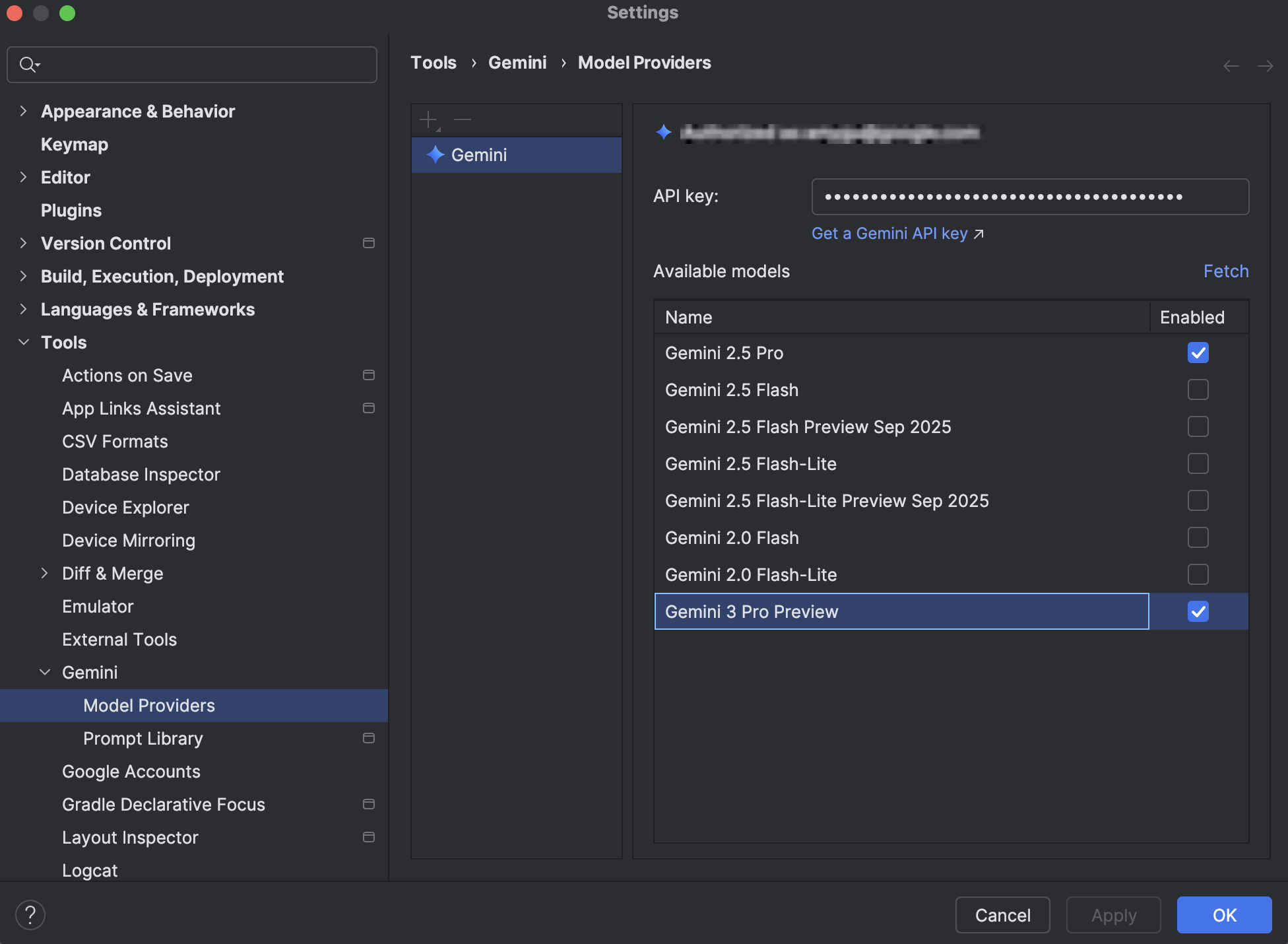
Image source: Android Developers
New Google Cloud users typically receive a 90-day free trial environment, which can be utilized to test Vertex AI capabilities before committing to a paid billing tier. Keep in mind that Vertex AI uses a different SDK (`@google-cloud/vertexai`) compared to the standard AI Studio SDK (`@google/generative-ai`).
4. Why You Must Migrate to Auth Keys Before September 2026
The most critical development for developers in 2026 is the mandatory transition from standard API keys to Auth keys. Historically, standard API keys functioned as "open secrets"—if someone obtained your string of characters, they could make requests impersonating your project.
- June 19, 2026: The Gemini API will begin rejecting requests from any standard key that does not have strict API and Application restrictions applied.
- September 2026: All standard API keys will be fully deprecated and cease to function. Users must migrate to Auth keys.
An Auth key represents a significant security upgrade. Instead of being a standalone secret, an Auth key is cryptographically bound to a specific Google Cloud Service Account. This means the key carries an identity, allowing administrators to use IAM policies to dictate exactly what the key can and cannot do.
To create an Auth key, your user account must possess specific IAM permissions, notably iam.serviceAccounts.create and iam.serviceAccountApiKeyBindings.create. New keys generated in AI Studio as of mid-2026 default to the Auth key format, but legacy projects require manual migration.
| Feature | Standard API Key (Legacy) | Auth Key (2026 Standard) |
|---|---|---|
| Identity Binding | None (Anonymous to the project) | Bound to a specific Service Account |
| Access Control | Basic API/IP restrictions only | Granular IAM role enforcement |
| Security Risk | High if leaked (Open Secret) | Lower (Permissions can be instantly revoked via IAM) |
| Expiration Date | September 2026 | Supported indefinitely |
5. How to Secure Your Key and Avoid Massive Billing Spikes
Developer community forums frequently feature reports of users facing unexpected billing charges—sometimes ranging from $4,000 to $10,000—due to accidentally committing their API keys to public GitHub repositories. Because API keys are inherently vulnerable, securing them is not optional.
As highlighted by the Google Cloud Security Blog, you must apply the Principle of Least Privilege immediately after generating a key.
By default, a new Google Cloud API key can access any enabled API in your project. You must restrict the key so it can only call the Gemini models. In the Cloud Console, edit your key, select "Restrict key," and check only the box for Generative Language API.
Prevent unauthorized servers from using your key. If you are building a web app, restrict the key to your specific HTTP referrers (e.g., *.yourdomain.com/*). If you are running a backend server, restrict the key to your server's static IP addresses.
For production environments, never hardcode keys in your source code or rely solely on .env files. Utilize Google Cloud Secret Manager to securely inject the key into your application at runtime, ensuring it never touches your version control system.
If you suspect your key has been compromised, do not attempt to salvage it. Immediately navigate to the credentials page, delete the compromised key, and generate a new one. The temporary downtime for your application is preferable to a massive fraudulent billing spike.
6. What to Do When Your Gemini API Key Isn't Working
Even with proper setup, developers occasionally encounter access issues. Understanding the common error codes and interface bugs will save you hours of debugging.
The "Blank Key" Bug
A known issue reported in the Google AI Developers Forum involves users clicking "Create API Key" only to be presented with a blank screen or an empty text field. This frequently occurs for users in specific regions (such as Tunisia) or due to aggressive browser caching.
The Fix: First, clear your browser cache and disable any ad-blockers, which sometimes interfere with the AI Studio popup scripts. If the issue persists, bypass AI Studio entirely and generate the key directly through the Google Cloud Console (as detailed in Section 3), which rarely suffers from this UI bug.
403 Forbidden Errors
A 403 Forbidden error indicates an authentication failure, but the root cause varies:
- Workspace Restrictions: If you are using a corporate or university Google account, your Google Workspace administrator may have globally disabled access to Generative AI features. You will need to use a personal account or request admin approval.
- API Not Enabled: If you created the key manually in Google Cloud, ensure the Generative Language API is actually enabled for that specific project.
- Auth Key Misconfiguration: If you are using a new Auth key, ensure the associated Service Account has the
roles/aiplatform.userrole assigned in IAM.
429 Too Many Requests
This error means you have hit your rate limit. The free tier of the Gemini API imposes strict Requests Per Minute (RPM) and Tokens Per Minute (TPM) limits, which vary depending on whether you are calling the Flash or Pro models. To resolve this, you must either implement exponential backoff in your code to slow down requests, or upgrade to a paid billing account to increase your quota.
7. How to Use Your Gemini API Key in Your Code
Once you have secured your key, integrating it into your application is straightforward. Google provides official SDKs for Python, Node.js, Go, and Android.
Environment Variable Precedence
When configuring your environment, you may notice documentation referencing both GEMINI_API_KEY and GOOGLE_API_KEY. It is important to note that if both variables are present in your environment, the SDKs are programmed so that GOOGLE_API_KEY takes precedence. Standardizing on GOOGLE_API_KEY is a highly recommended practice to avoid configuration conflicts.
Python Implementation
To use the key in Python, install the SDK via pip install -U google-generativeai and configure it as follows:
import google.generativeai as genai
import os

# The SDK will automatically look for the GOOGLE_API_KEY environment variable
# if you do not explicitly pass it to the configure method.
genai.configure(api_key=os.environ["GOOGLE_API_KEY"])

model = genai.GenerativeModel('gemini-1.5-flash')
response = model.generate_content("Explain quantum computing in one sentence.")
print(response.text)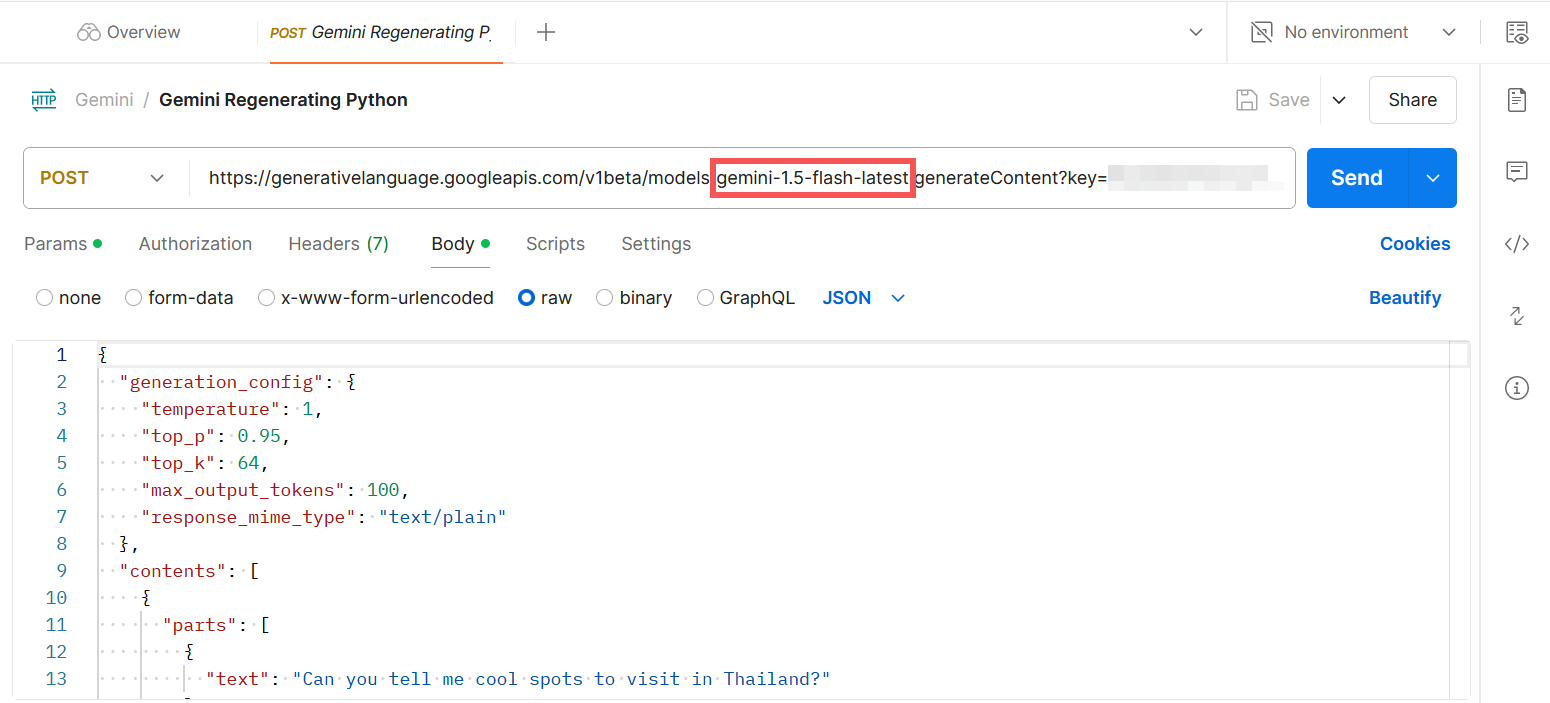
Image source: Zapier
For non-developers, the API key can be utilized in low-code/no-code platforms. When setting up a Gemini module in Zapier or Make.com, you simply paste the key into the authentication field. Note that these platforms will also require updates to support Auth keys before the September 2026 deadline.
8. Advanced Features You Can Access with Your Key
Your API key unlocks more than just basic text generation. According to Google's advanced techniques documentation, a properly authenticated key grants access to several powerful backend features designed to optimize performance and reduce costs.
- Context Caching: If you are repeatedly sending the same massive document (like a 1,000-page PDF or a large codebase) to the model, you can use your API key to cache that context on Google's servers. This significantly reduces the token cost and latency for subsequent queries against that document.
- Code Execution: You can enable a feature that allows the Gemini model to write and execute Python code in a secure sandbox to solve complex mathematical or logical problems before returning the final answer to you.
- System Instructions: Your key allows you to define persistent "System Instructions" that dictate the model's persona, tone, and behavioral boundaries across an entire chat session.
9. Frequently Asked Questions
Is the Gemini API key completely free?
The Gemini API offers a free tier (Tier 1) that allows developers to access models like Gemini 1.5 Flash and Pro without a billing account, subject to strict rate limits (e.g., 15 Requests Per Minute for Flash). However, your data may be used to train Google's models on the free tier. For higher limits, data privacy guarantees, and production use, you must upgrade to a pay-as-you-go billing account.
Can I use one API key for multiple projects?
While technically possible, it is strongly discouraged. Using a single key across multiple applications violates the Principle of Least Privilege. If the key is compromised, all your applications become vulnerable, and it becomes impossible to track which application is consuming your billing quota. Always generate a unique key for each specific project.
Why can't I see the "Create API Key" button in AI Studio?
This usually happens for two reasons: either the Gemini API is not yet available in your geographic region, or you are logged in with a Google Workspace account where the administrator has disabled access to early-access AI features. Check Google's official region availability list or try logging in with a personal Gmail account.
What is the difference between the Gemini API and Vertex AI?
The Gemini API (via AI Studio) is a developer-focused platform designed for rapid prototyping and easy access. Vertex AI is Google Cloud's enterprise machine learning platform. While both provide access to the same underlying Gemini models, Vertex AI offers enterprise-grade data governance, VPC service controls, and integration with other Google Cloud infrastructure. They use different SDKs and authentication flows.
How do I rotate a leaked API key?
To rotate a key, you must first generate a new key in the Google Cloud Console or AI Studio. Update your application's environment variables or Secret Manager with the new key and deploy the changes. Once you confirm the application is functioning with the new key, return to the console and permanently delete the old, leaked key to prevent unauthorized charges.
The Bottom Line
Securing and managing your Gemini API key is a foundational step in building reliable AI applications. As Google phases out legacy authentication methods, staying ahead of the transition ensures your projects remain online and secure.
- Choose your path: Use AI Studio for rapid prototyping and Google Cloud for enterprise deployments.
- Migrate early: Transition from standard keys to Auth keys well before the September 2026 deadline to avoid service interruptions.
- Lock it down: Always apply API and Application restrictions immediately after generation to prevent unauthorized use.
- Hide your secrets: Never commit keys to GitHub; use environment variables or Secret Manager.
- Monitor usage: Keep an eye on your Google Cloud billing dashboard to catch 429 errors or unexpected traffic spikes early.