
As of late 2026, Anthropic does not provide an official Visual Studio 2026 extension. To use Claude Code, you must install the Claude CLI via Node.js and then use a community bridge like firish or dliedke. These extensions embed the agentic terminal directly into your IDE, allowing for automated code generation, refactoring, and terminal-based debugging within the .NET ecosystem.
The landscape of AI-assisted development has shifted significantly in recent months. While Visual Studio Code users enjoy native support from Anthropic, developers working within the full Visual Studio 2026 IDE often feel left behind. However, the community has stepped in to bridge this gap, creating robust integrations that bring the agentic capabilities of Claude Code into the professional .NET environment.
Using Claude Code in Visual Studio 2026 is not just about having a chat window; it is about enabling an agent that can read your solution structure, execute dotnet commands, and apply diffs directly to your source files. This guide explores the most effective ways to set up this workflow, troubleshoot common terminal issues, and leverage advanced .NET-specific strategies to improve your coding efficiency.
Currently, the answer is no. Anthropic’s official IDE support remains focused on Visual Studio Code and the JetBrains suite. For those using the full Visual Studio 2026 IDE, the integration relies on the Claude CLI acting as the engine, while third-party extensions provide the user interface.
This distinction is important for security and performance. Official support is a frequent request on the Claude Code GitHub repository, but as of September 2026, the roadmap suggests that native integration for the full IDE is still in the evaluation phase. Community extensions are currently the only way to avoid the "copy-paste friction" that occurs when switching between a standalone terminal and your code editor.
Why does this matter? Without an extension, you lose the ability for Claude to "see" your current file context automatically. You would have to manually feed file paths into the CLI. The community bridges we discuss below solve this by synchronizing your active document and solution context with the underlying Claude agent.
There are three primary contenders in the Visual Studio Marketplace. Each offers a slightly different approach to agentic coding, and your choice should depend on whether you prioritize UI flexibility or deep semantic understanding of C# code.
| Extension Name | Primary Strength | Key Feature |
|---|---|---|
| Claude Code (dliedke) | UI Flexibility | Native Mode Chat & Prompt History |
| Claude Code for VS (firish) | .NET Semantic Depth | Roslyn Navigation & Debugger Sync |
| VsAgentic (adospace) | Parallel Workflows | Multi-agent tabs & Linux toolset |
The firish extension (often listed as bridgev1) stands out as a top choice for developers working on complex C# solutions. Unlike basic terminal wrappers, this extension leverages the Roslyn compiler platform. This allows Claude to perform semantic searches—finding where an interface is actually implemented rather than just searching for text strings.
Many users find that this extension handles large solutions more gracefully because it can provide the agent with a "map" of the project structure. If you are refactoring a dependency injection container or tracing an inheritance chain, the firish extension provides the necessary context that a standard CLI might miss.
If you prefer a more visual experience, the dliedke extension ranks among the most user-friendly options. It introduces a "Native Mode" chat tab that formats Claude’s responses as document tabs rather than just scrolling terminal text. This makes it much easier to review long explanations or complex architectural suggestions.
A notable feature here is the prompt history. The extension saves your last 50 prompts, including any files you attached. This is incredibly useful if Visual Studio crashes or if you need to revisit a complex instruction you gave the agent earlier in the day.
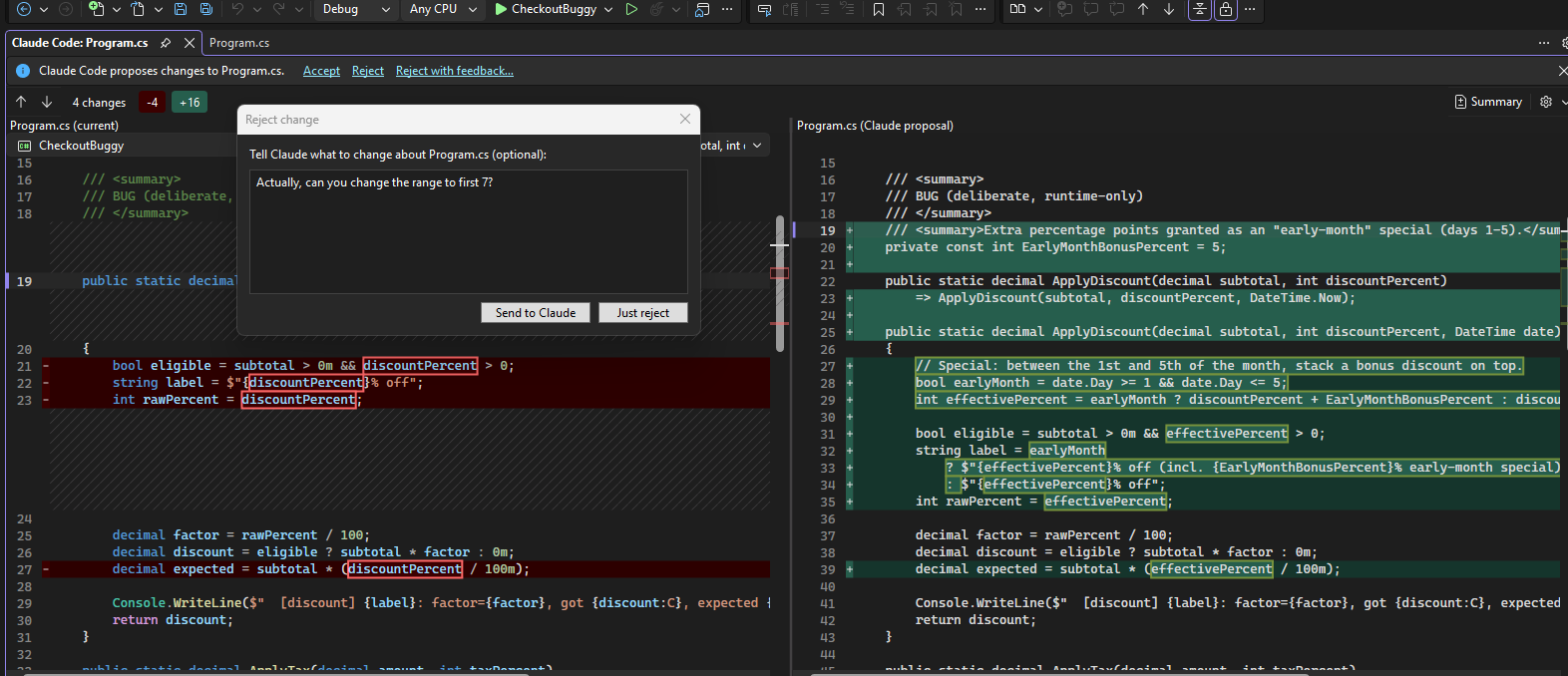
Before any extension will work, you must install the engine that powers it. Claude Code is essentially a Node.js application that runs in your terminal. Follow these steps to prepare your environment:
node -v in PowerShell.claude in your terminal. You will be prompted to log in. You can use a Claude Pro subscription or, for more granular control, a Claude Console API Key.ANTHROPIC_API_KEY to your Windows Environment Variables. This prevents the "Key Not Found" errors that frequently plague IDE integrations.claude config set proxy http://your-proxy:port if you encounter connection timeouts.
Once the CLI is ready, you can integrate it into Visual Studio 2026. We will use the dliedke extension as our primary example due to its straightforward setup process.
Open Visual Studio 2026 and go to Extensions > Manage Extensions. Search for "Claude Code." You will likely see several results; look for the one authored by dliedke. Click download and restart Visual Studio to complete the installation.
After restarting, the extension might not be immediately visible. You can find it by navigating to View > Other Windows > Claude Code. Many developers prefer to dock this window next to the Solution Explorer for easy access while coding.
In the extension settings (usually a gear icon within the Claude window), you must specify the path to your claude.exe. If you installed it via npm, this is typically located in your AppData folder. The extension uses this path to spawn the agentic process that interacts with your code.
One of the most common frustrations when using Claude Code in Visual Studio 2026 is a blank terminal window or an error stating that the terminal "failed to attach." This is almost always caused by a conflict with the Windows console host.
The Solution: You must disable "Legacy Console" mode. To do this:
Additionally, ensure that your terminal supports Unicode. Claude Code uses emojis and specialized characters to highlight code diffs. If you see strange boxes instead of icons, you may need to enable the Beta: Use Unicode UTF-8 for worldwide language support option in your Windows Region settings.
Simply asking Claude to "write a function" is a basic use case. To truly leverage agentic coding in Visual Studio 2026, you should implement a Verification Loop. This strategy ensures that the code generated by the LLM actually compiles and passes your business logic tests.
Instead of manually checking every change, instruct Claude to verify its own work. A typical prompt might look like this:
Because Claude Code has terminal access, it can execute these commands, read the compiler errors, and fix its own mistakes before you ever look at the code. This significantly reduces the time spent on manual debugging of syntax errors or missing using statements.
The firish extension offers a particularly strong feature: live debugger access. When you hit a breakpoint in Visual Studio, you can ask Claude to "analyze the current call stack." The extension can feed the local variable states and the stack trace into the chat, allowing Claude to diagnose logic errors that are not apparent from the static source code alone.
While Visual Studio 2026 runs on Windows, Claude Code often performs better when it has access to Linux-style utilities like grep, sed, and find. PowerShell is powerful, but its verbose output can sometimes "pollute" the agent's context window with unnecessary metadata.
If you have WSL (Windows Subsystem for Linux) or Git Bash installed, you can configure your Claude extension to use these as the backend shell. This allows the agent to use more concise commands to search through your solution, which can save on token costs and improve the speed of the agent's responses.
No. Visual Studio 2026 is a full-featured Integrated Development Environment (IDE) primarily used for heavy .NET, C++, and enterprise development. Visual Studio Code is a lightweight, cross-platform code editor. While they share a name, their extension ecosystems are entirely different, which is why the official Claude Code extension for VS Code does not work in the full IDE.
Not necessarily. While you can use a Claude Pro subscription, many developers find it more cost-effective to use the Claude Console API. With the API, you only pay for the tokens you actually use (pay-as-you-go), which can be cheaper if you aren't using the agent heavily every single day. Most community extensions support both methods.
Claude has a large context window, but it does not "read" every file in a massive solution simultaneously to save on costs. Instead, it uses tools to search for relevant files. You can help it by using the @ symbol to reference specific files or folders that you know are relevant to your current task.
Since the CLI is installed via npm, you can update it at any time by running npm update -g @anthropic-ai/claude-code in your terminal. It is a good idea to do this weekly, as Anthropic frequently releases updates that improve the agent's ability to handle complex coding tasks.
The Claude CLI is language-agnostic and can work with any text-based code, including C++, Python, and JavaScript. However, features like "semantic navigation" (finding implementations) are currently most advanced for C# due to the Roslyn integration found in extensions like firish.
Integrating Claude Code into Visual Studio 2026 transforms the IDE from a static editor into a collaborative environment. By following the right setup path, you can significantly reduce your manual workload.
dotnet build after making changes to catch hallucinations.Start by installing the Claude CLI in a standalone terminal to familiarize yourself with the commands before moving your workflow into the Visual Studio IDE.
