How to Set Up and Optimize Voicemod for Discord and Gaming
As real-time audio processing becomes increasingly sophisticated, digital voice modification has evolved from simple pitch-shifting to complex AI-driven vocal transformations. Whether you are a streamer looking to enhance your broadcast, a tabletop roleplayer bringing characters to life, or simply someone looking to add humor to a Discord call, understanding how to properly route and optimize your audio is essential.
This comprehensive guide explores the technical setup of Voicemod, addresses common troubleshooting hurdles specific to the V3 architecture, and details advanced hardware integrations to help you achieve a highly optimized audio setup.
What Is Voicemod and How Does the Virtual Microphone Work?
Voicemod is a real-time voice changer and soundboard application designed primarily for Windows and macOS desktop environments. While older voice changers relied on basic Digital Signal Processing (DSP) to alter pitch and speed, modern iterations of the software utilize artificial intelligence models to map your speech patterns onto entirely different vocal profiles in real time. According to Voicemod's official documentation, their AI models are "Fairly Trained," meaning they are developed using data from professional voice actors who consented to the process.
To understand how to use the software effectively, you must understand the concept of the Virtual Audio Driver. When you install the application, it does not permanently alter your physical microphone. Instead, it installs a software-based "virtual cable" on your operating system.
Image source: www.voicemod.net
The signal flow works like this:
- You speak into your physical microphone (e.g., a Blue Yeti or headset mic).
- The audio signal is sent to the Voicemod application.
- The software processes the audio, applying the selected AI voice or soundboard effect.
- The software outputs the modified audio through the Voicemod Virtual Audio Device.
- Your chat application (Discord, Zoom, etc.) captures the audio from that virtual device, not your physical mic.
Failing to understand this signal flow is the primary reason new users struggle to get the software working in their games.
How to Install Voicemod and Configure Your Audio Settings
Proper installation requires careful attention to your operating system's default sound settings. A common mistake is setting the virtual device as the default input for the entire operating system, which can cause audio looping or system-wide echo.

Image source: Microsoft Store
Why Does My AI Voice Sound Garbled or Robotic?
One of the most frequent complaints from users—particularly those with naturally deep voices—is that the AI voice models sound garbled, robotic, or heavily distorted. This issue rarely stems from software bugs; rather, it is a result of poor acoustic input. To fix this, users must adopt the "Voice as an Instrument" framework.
Understanding Vocal Prosody
Traditional DSP voice changers simply shift the pitch of whatever audio they receive. AI voice models work differently. They analyze the phonemes (the distinct sounds of speech) and attempt to map them onto a new vocal profile. According to community troubleshooting threads, if you speak in a flat, monotone voice, the AI struggles to interpret the emotional cadence, resulting in a robotic output. To achieve a natural sound, you must adjust your prosody—the rhythm, stress, and intonation of your speech—to match the character you are trying to portray.
The 15/30 Rule for Microphone Positioning
AI models are highly sensitive to room acoustics and proximity effects. Official optimization guidelines emphasize strict microphone positioning rules to provide the AI with the cleanest possible signal:
- Standalone Microphones (Condenser/Dynamic): Maintain a distance of exactly 15cm to 30cm (6 to 12 inches) from the capsule. Getting closer than 15cm introduces the "proximity effect," artificially boosting bass frequencies that confuse the AI. Moving further than 30cm introduces room reverb (echo), which causes the AI to process the bouncing soundwaves as additional, garbled speech.
- Headset Microphones: Position the boom arm exactly 2 centimeters from the corner of your mouth. Do not place it directly in front of your lips, as the plosive bursts of air from "P" and "B" sounds will cause the AI model to clip and distort.
How to Fix the Voicemod V3 "Ready to Connect" Bug
With the rollout of the V3 architecture, a significant number of users have encountered a frustrating bug where the application displays a "Ready to Connect" status but fails to detect any microphone input, rendering the software useless. Standard reinstallation often fails to resolve this issue because the root cause lies in corrupted virtual driver registries or Windows privacy overrides.
Based on technical support discussions, here is the recommended sequence to resolve the V3 connection bug:
Step 1: Verify Windows Privacy Settings
Windows updates frequently reset microphone privacy settings. Navigate to Settings > Privacy & Security > Microphone. Ensure that "Microphone access" is toggled ON, and specifically verify that "Let desktop apps access your microphone" is enabled. If this is off, Voicemod is blocked at the OS level, regardless of its internal settings.
Step 2: Purge Corrupted Virtual Drivers
If privacy settings are correct, the virtual driver is likely corrupted.
- Right-click the Windows Start button and open Device Manager.
- Expand the Audio inputs and outputs section.
- Locate Microphone (Voicemod Virtual Audio Device).
- Right-click it and select Uninstall device. (If prompted, check the box to attempt to remove the driver software).
- Restart your computer.
Step 3: Perform a Clean V3 Installation
After the restart, do not simply run the installer again. First, delete the local app data folder located at %localappdata%\Voicemod. Once this folder is cleared, run the latest V3 installer as an Administrator. This forces the software to rebuild the virtual audio cable from scratch, which typically resolves the "Ready to Connect" loop.
Connecting Voicemod to Discord and Other Gaming Apps
Routing your modified voice into chat applications is generally straightforward, but applications like Discord feature aggressive built-in audio processing that actively fights against virtual audio drivers.
To set up Discord:
- Open Discord and navigate to User Settings > Voice & Video.
- Change your Input Device to
Microphone (Voicemod Virtual Audio Device). - Leave your Output Device as your standard headphones.
This same principle applies to in-game voice chats in titles like Fortnite, GTA V, or Call of Duty. Always select the virtual audio device in the game's audio settings, and disable any in-game "open mic sensitivity" auto-adjustments.
Can You Use Voicemod on PS5 or Xbox?
A common point of confusion is console compatibility. The core software requires a Windows or macOS desktop environment to process the audio in real time. You cannot install the application directly onto a PlayStation 5 or Xbox Series X.
However, console players can utilize a workaround known as the Voicemod Key or through specific hardware routing, as frequently demonstrated on the official TikTok channel.
To use voice effects on a console, you must route your audio through a PC first. This is typically achieved in one of two ways:
- Remote Play Routing: By joining a console party chat via the Xbox App or PlayStation App on your PC, you can select the virtual audio device as your input, allowing your console friends to hear the modified voice.
- Hardware Mixers: Using a device like the Astro MixAmp or an Elgato capture card setup, you can output your PC's modified audio directly into the controller's microphone jack using a specialized auxiliary splitter.
Advanced Workflows for Streamers and Power Users
For content creators, integrating voice modification into a broader streaming ecosystem is essential for a smooth broadcast. The software offers several advanced integrations that elevate it beyond a simple novelty tool.
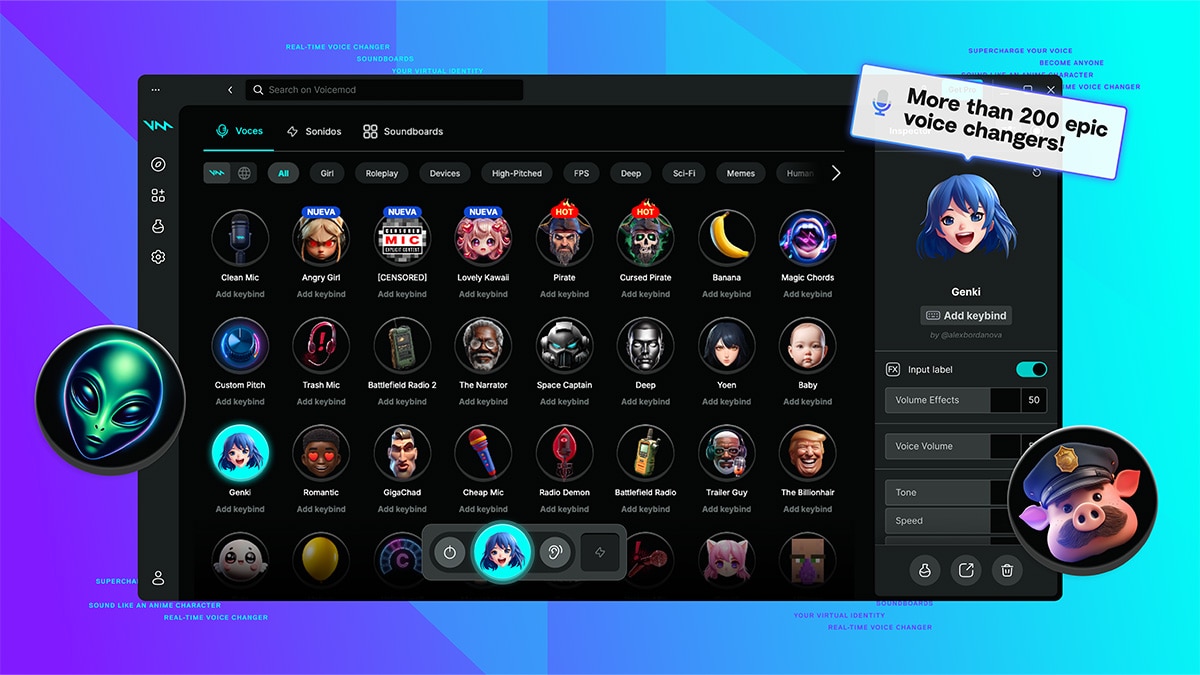
Image source: AMD
NPU Optimization for Low Latency
Real-time AI voice processing is notoriously CPU-intensive. If you are playing a CPU-heavy game, running complex voice models simultaneously can lead to audio stuttering or dropped frames in-game. However, recent updates have introduced support for Neural Processing Units (NPUs). If your system utilizes a modern chip with an NPU (such as the Snapdragon X Elite or newer AMD Ryzen AI processors), the software can offload the AI workload entirely to the NPU. This preserves your CPU cycles for gaming, resulting in a highly optimized, low-latency stream.
Hardware Synergy and Reactive Lighting
Through a feature called Voicemod Sync, users can connect their audio profiles to their physical PC lighting. By integrating with software like MSI Mystic Light or Corsair iCUE, you can program your RGB setup to change colors based on the voice you select—for example, shifting your room lighting to a deep red when activating a "Demon" voice profile.
Elgato Stream Deck Integration
Navigating a desktop app while live streaming is impractical. The software features native integration with the Elgato Stream Deck. Users can map specific voices, soundboard clips, and the "Censor Bleep" function to physical buttons. This allows for instant, tactile control over your audio environment without ever tabbing out of your game.
Is Voicemod Pro Worth the Price?
The software operates on a freemium model. The free version is highly functional but intentionally limited, offering a rotating daily selection of voices and a restricted number of soundboard slots. For users who want consistent access to specific tools, the Pro version is required.
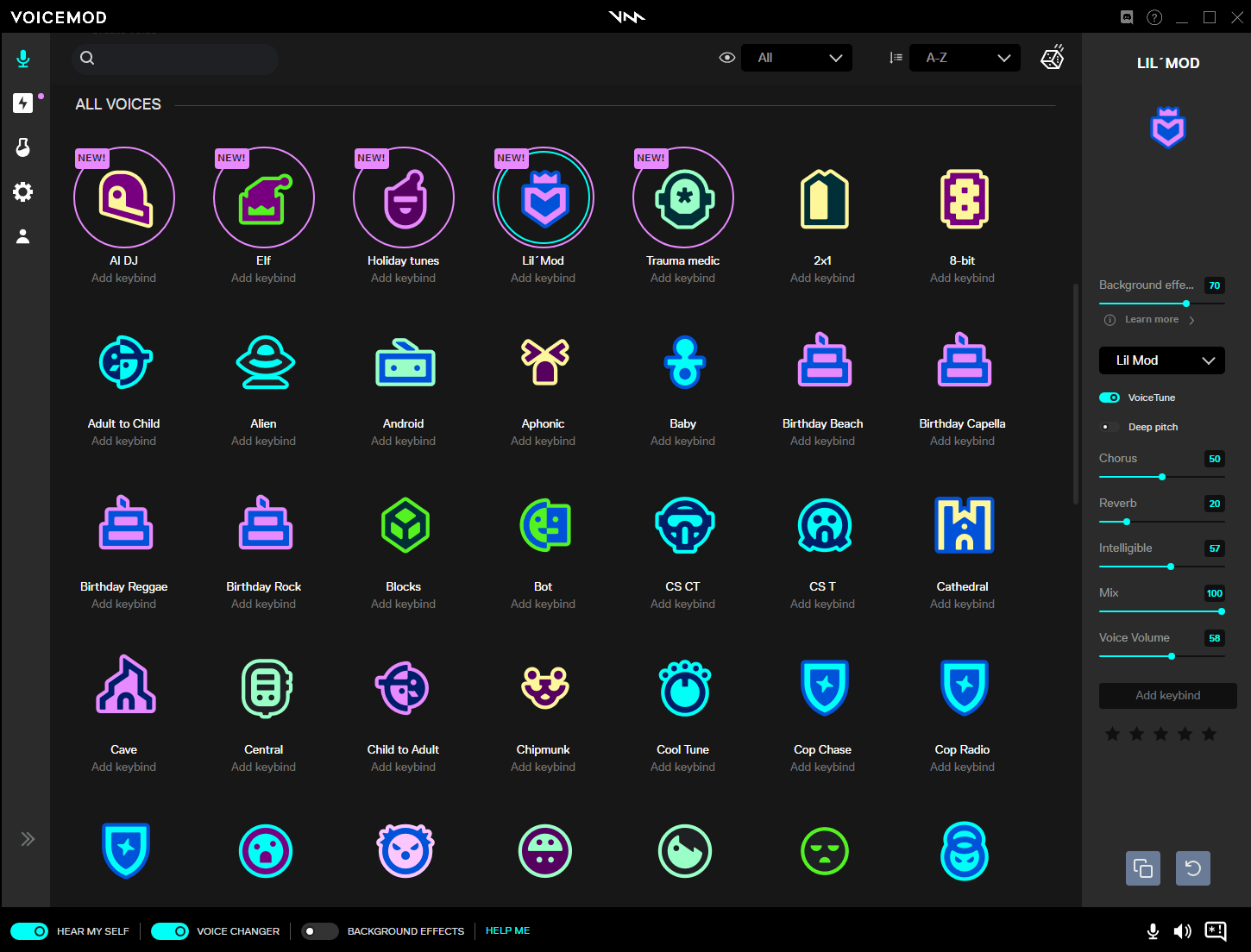
Image source: Voicemod
| Feature | Free Version | Pro Version |
|---|---|---|
| Voice Access | Rotating selection (changes daily) | Unlimited access to 200+ voices |
| Soundboard Slots | Limited to 5 custom sounds | Unlimited custom sounds & profiles |
| Voicelab Creator | Locked | Unlocked |
| Community Voices | Locked | Unlocked |
As of 2026, the pricing structure typically offers weekly, monthly, and annual subscriptions, alongside a one-time lifetime license (historically priced around $54.99, though subject to regional variations). For frequent users, the lifetime license is widely regarded as a strong value proposition.
The primary draw of the Pro tier is Voicelab. Rather than relying on presets, Voicelab provides a digital mixing board where users can combine effects like the "Robotifier," custom Reverb, Pitch Shifting, and Delay to engineer a completely unique signature voice for their online persona.
Understanding the Mobile App Limitations
There is a widespread misconception regarding the capabilities of the mobile application. Many users download the app expecting it to change their voice in real-time during standard cellular phone calls or mobile gaming sessions.
According to the iOS App Store documentation and Google Play Store details, the mobile app does not function as a real-time voice changer for live calls. Mobile operating systems (iOS and Android) have strict security sandboxing that prevents third-party apps from intercepting and modifying live microphone audio at the system level.
Instead, the mobile app serves two primary functions:
- As a Remote Control: It can sync with your desktop application over Wi-Fi, allowing you to use your smartphone as a touch-screen soundboard and voice-switcher for your PC stream.
- As an Asynchronous Creator: You can record audio clips within the app, apply voice filters to the recording, and then share the modified audio file via messaging apps like WhatsApp or iMessage.
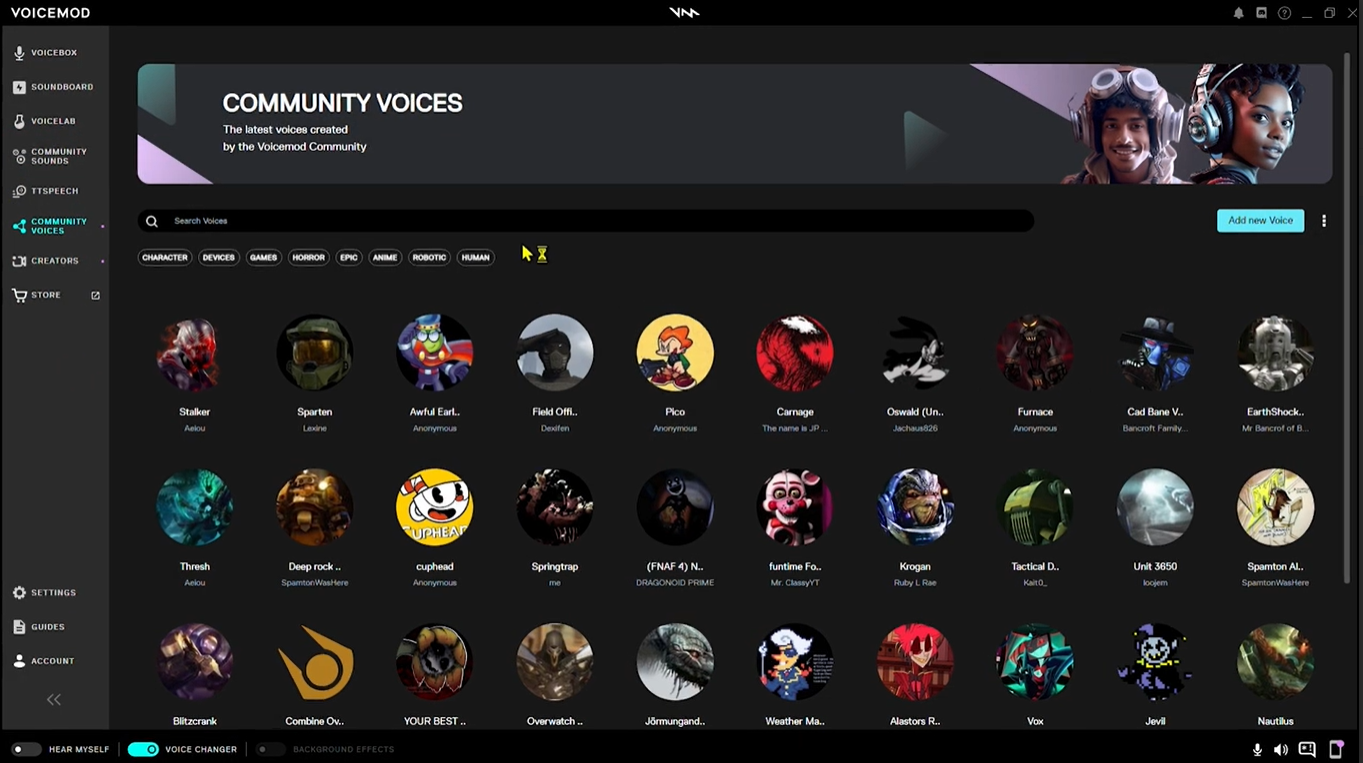
Image source: Voicemod
Frequently Asked Questions
Final Thoughts
Mastering digital audio routing transforms a simple novelty app into a highly effective tool for content creation and online communication. By understanding the mechanics of virtual drivers and acoustic positioning, you can avoid the common pitfalls that frustrate new users.
- Respect the 15/30 Rule: Keep your standalone microphone 15–30cm away to provide the AI with clean, reverb-free audio.
- Master the Virtual Driver: Always select your physical mic in the app, but select the Virtual Audio Device in Discord or your game.
- Disable App Suppression: Turn off Krisp and Echo Cancellation in Discord to prevent your modified voice from being muted.
- Fix V3 Bugs via Device Manager: Resolve "Ready to Connect" errors by manually uninstalling corrupted virtual drivers before reinstalling.
- Leverage Hardware: Utilize Stream Decks and NPU processing to integrate voice control seamlessly into your streaming workflow.