
Artificial intelligence has rapidly evolved from simple question-and-answer chatbots into comprehensive digital workspaces. As of March 2026, Google has significantly expanded its ecosystem with the widespread rollout of Gemini Canvas, a feature designed to bridge the gap between ideation and execution.
Whether you are a developer looking to prototype a React application in minutes, a researcher synthesizing massive datasets, or a writer refining a long-form report, Canvas provides the necessary infrastructure. This guide explores the complete prompt-to-prototype workflow, detailing how to leverage the workspace, troubleshoot common bugs, and integrate advanced features like Audio Overview and Deep Research.
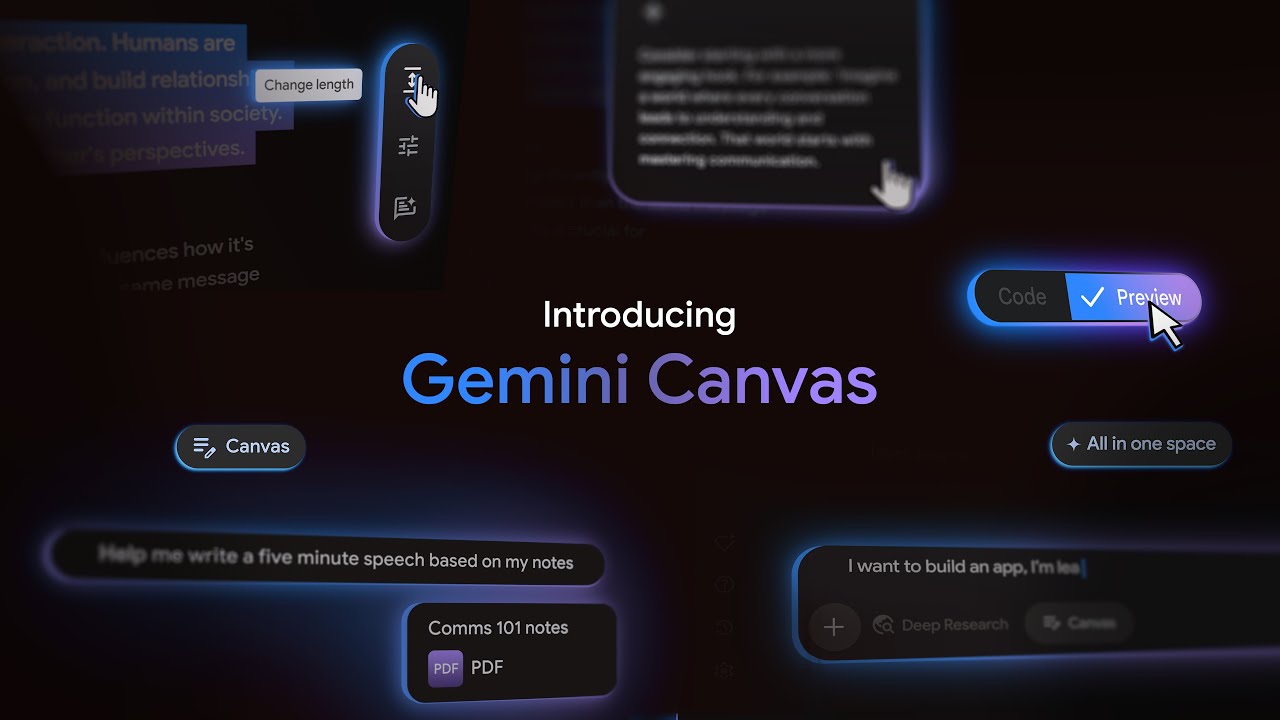
To understand Canvas, you must first understand the limitations of traditional AI chat interfaces. In a standard chat, every new prompt pushes previous context further up the screen. If you ask an AI to write a 2,000-word essay or a complex Python script, and then ask it to change one specific paragraph, the AI typically rewrites and outputs the entire document again. This process is inefficient and prone to introducing new errors.
Gemini Canvas solves this by introducing a side-by-side editor. When you trigger Canvas mode, the screen splits. On the left, you retain your conversational chat interface. On the right, a dedicated document or code editor opens. The AI and the user can now edit the exact same document simultaneously.
The core capabilities of this workspace fall into three primary categories:
Canvas allows for targeted text manipulation. You can highlight a specific sentence and ask the AI to "make this sound more professional" or "expand this into a full paragraph" without regenerating the rest of the document.
The workspace supports syntax highlighting for HTML, React, Python, and JavaScript. Crucially, it includes a "Live Preview" pane, allowing you to see the visual output of your web code instantly.
Beyond text and code, Canvas can generate interactive infographics, data visualizations, and even 3D renders based on the data processed in the chat.
The underlying power of Canvas depends heavily on your subscription tier. Free users typically access the workspace powered by the Gemini 2.0 Flash model, which is highly capable for standard writing and basic coding. However, Google AI Pro and Ultra subscribers gain access to the Gemini 3 model, which features a massive 1-million-token context window. This expanded memory is essential when feeding the AI extensive documentation, entire codebases, or lengthy research papers to analyze within the Canvas environment.
Accessing Canvas is straightforward, though its availability depends on your region and account settings. As of recent updates, the feature is globally available for Gemini Advanced subscribers and has been rolled out to all US users on the free tier.
To launch the workspace, look for the Canvas button located directly below the main prompt bar in the standard Gemini interface. Clicking this button opens the split-screen view, allowing you to begin your project.
One of the most frequent use cases for Canvas is rapid application development. The platform's ability to handle HTML, React, and JavaScript while providing a live visual output makes it a strong contender for developers and hobbyists alike.
The "Prompt-to-Prototype" workflow is an iterative process. You do not need to provide a perfect, highly detailed prompt on the first try. Instead, you build the foundation and use the Canvas interface to refine it.
Here is how to execute this workflow:
For advanced users, Canvas offers a unique integration: the "Add Gemini features" button. This tool allows you to embed AI generation capabilities directly into the prototype you are building. For instance, if you are building a recipe app, you can use this button to insert a text-generation API call so your app can automatically generate ingredient substitutes on the fly.
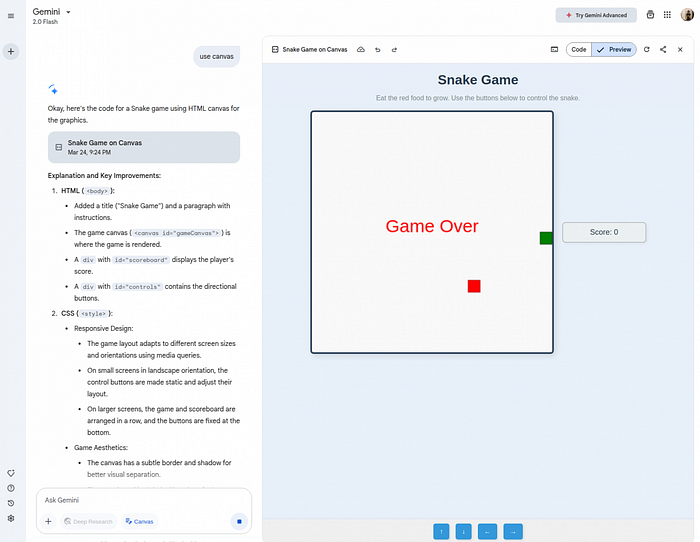
A common point of friction reported in the Gemini community forums is the "Live Preview" bug, where the visual pane remains blank or displays an error message despite the code appearing correct.
If you encounter this issue, run through this troubleshooting checklist:
Many users treat Gemini's "Deep Research" function and "Canvas" as two separate tools. However, Google designed them to function as a unified funnel. By combining the 1-million-token context window of Gemini Advanced with the Canvas editor, you can transform massive amounts of raw data into polished, interactive assets.
The workflow begins by initiating a Deep Research query. You might upload several PDFs of market research or ask Gemini to scrape the web for recent data on renewable energy trends. Once the AI compiles the comprehensive Deep Research Report, you transition into Canvas mode.
Inside Canvas, you can use the "Create" dropdown menu to convert that dense research into accessible formats:
| Asset Type | Best Use Case | How Canvas Handles It |
|---|---|---|
| Interactive Infographics | Data visualization, executive summaries | Canvas generates HTML/JS charts (using libraries like Chart.js) that users can hover over to see specific data points from the research. |
| Educational Quizzes | Study guides, corporate training | The AI extracts key facts from the report and builds a functional, interactive multiple-choice quiz directly in the workspace. |
| 3D Renders | Product mockups, architectural concepts | Based on descriptive text in the research, Canvas can generate basic 3D visual models that can be rotated within the preview pane. |
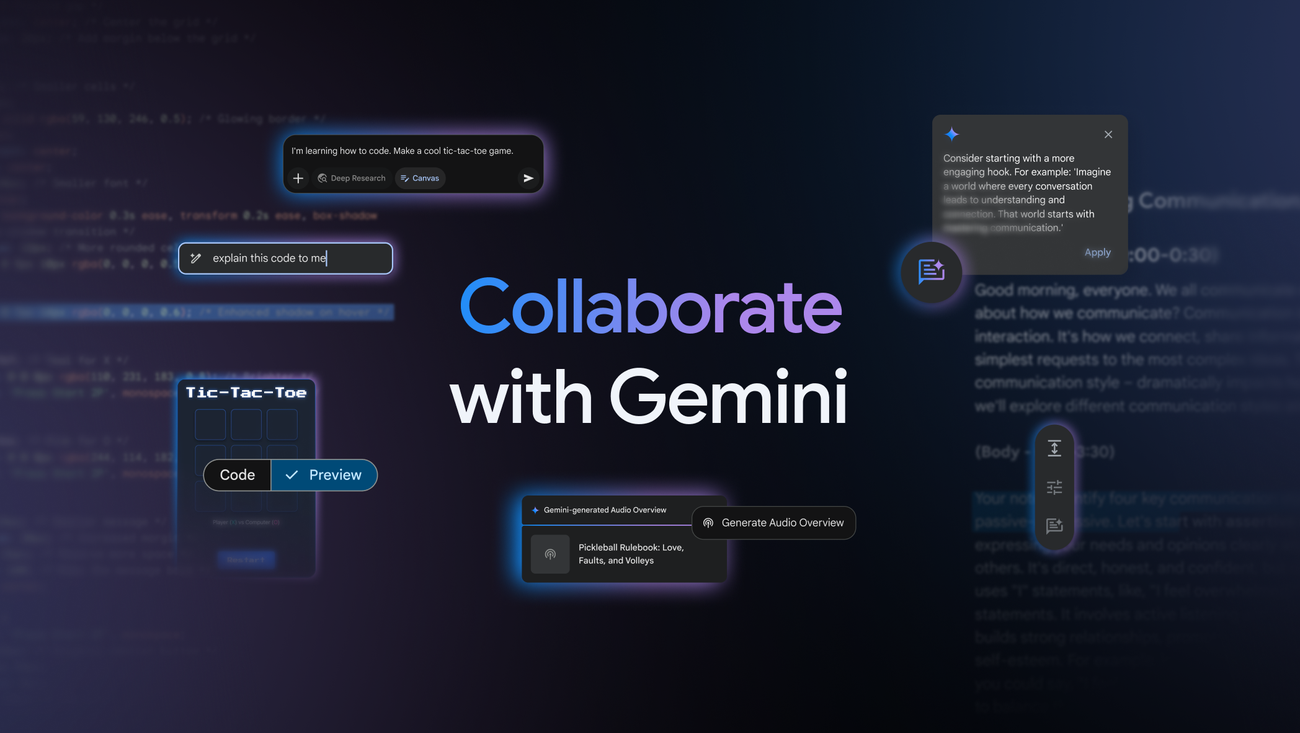
One of the most distinct features introduced to the Gemini ecosystem is Audio Overview. This tool takes the text or data currently sitting in your Canvas workspace and converts it into a dynamic, two-person AI audio discussion.
Instead of a robotic text-to-speech reading, Audio Overview synthesizes the information into a conversational format, complete with banter, clarifying questions, and natural pacing. It effectively turns your Canvas document into a custom podcast episode.
Practical Use Cases:
Currently, the customization options for the voices are somewhat limited, but the AI automatically adjusts the "vibe" of the discussion based on the tone of the source text. A highly technical coding document will result in a more analytical discussion, while a creative writing piece will yield a more expressive audio output.
When using Canvas for writing rather than coding, the workspace functions similarly to a highly advanced word processor. The primary advantage is the floating quick-editing toolbar that appears when you highlight text.
Instead of typing out new prompts, you can use these quick tools to instantly adjust the highlighted section. Options typically include adjusting the length (making it shorter or more detailed), changing the tone (from casual to professional), and fixing grammar or formatting.
The real-time collaboration aspect also shines during the drafting process. As you manually type or edit the document in the right-hand pane, the AI can suggest contextual improvements, acting as a proactive co-writer rather than just a reactive chatbot.
Google is not the only company offering a workspace environment. OpenAI has a similar feature for ChatGPT. While both tools aim to solve the limitations of standard chat interfaces, they excel in different areas.
Here is a breakdown of how they compare:
| Feature | Gemini Canvas | ChatGPT Canvas |
|---|---|---|
| Context Window | Up to 1 Million tokens (Gemini 3 Pro/Ultra), ideal for massive datasets and Deep Research. | Standard context window (GPT-4o), highly capable but smaller memory capacity for single sessions. |
| App Building | Features the "Add Gemini features" button to embed AI directly into generated prototypes. | Relies on Custom GPTs and API integrations for advanced app behavior. |
| Ecosystem Integration | Seamless export to Google Docs, Google Workspace, and Google Colab. | Standalone environment; requires manual copying or third-party integrations for export. |
| Audio Features | Audio Overview (generates a two-person podcast discussion from the document). | Advanced Voice Mode (real-time, highly expressive conversational interaction). |
Decision Framework:
Choose Gemini Canvas if you are deeply integrated into the Google ecosystem, need to process massive amounts of data (using the 1M token window), or want to quickly prototype web apps with embedded AI features. It stands out as a top choice for researchers and enterprise users.
Choose ChatGPT Canvas if your primary focus is complex, multi-file coding logic or creative writing, where OpenAI's models historically offer highly competitive reasoning and stylistic nuance.
One of the most critical aspects of working in any digital environment is saving your progress. Gemini Canvas features an auto-save function; every change made by you or the AI is automatically recorded within that specific chat session.
However, Canvas currently lacks a traditional, granular "Version History" menu like you would find in Google Docs. If you ask the AI to perform a major rewrite of your code or text and you dislike the result, rolling back can be frustrating.
The Version Control Workaround:
To protect your work, utilize the "Copy Canvas" feature. Before you issue a prompt that will drastically alter the document (e.g., "Rewrite this entire app to use Tailwind CSS instead of standard CSS"), click "Copy Canvas." This duplicates the current state of your workspace into a new, separate chat session. You can then experiment safely in the new session while preserving your original draft.
Exporting and Execution:
Once your project is complete, Canvas offers robust export options. For written documents, you can export directly to Google Docs with formatting intact. For developers working with Python, Canvas cannot execute heavy backend Python scripts directly in the browser preview. Instead, use the export function to send your Python code directly to Google Colab, where you can run, test, and deploy the script using Google's cloud computing resources.
Gemini Canvas transforms the standard AI chatbot experience into a highly capable, production-ready workstation. By separating the conversational interface from the editing environment, it allows for precise, iterative development of both code and copy.
