How to Use Gemini to Create Images and Edit Photos with Nano Banana 2
Google's Gemini platform currently utilizes the Nano Banana 2 (NB2) engine for all visual generation tasks. To create your first image immediately:
- Navigate to gemini.google.com and sign in to your Google account.
- Locate the chat bar and type a descriptive prompt starting with "Create an image of..." or use the dedicated 🍌Create images tool menu.
- Review the generated options, click on your preferred image, and select the download icon to save it to your device.
Artificial intelligence image generation has evolved rapidly, moving away from simple keyword associations toward deep, contextual understanding. As of 2026, Google's Gemini platform relies on a highly capable multimodal architecture to process visual requests. Whether you are a marketer needing quick assets, a designer prototyping concepts, or a casual user exploring creative ideas, understanding how to communicate with this system is essential.
This comprehensive guide explores the mechanics of Gemini's image generation, detailing how to leverage the Nano Banana 2 model, master narrative prompting, navigate regional restrictions, and utilize advanced editing features.
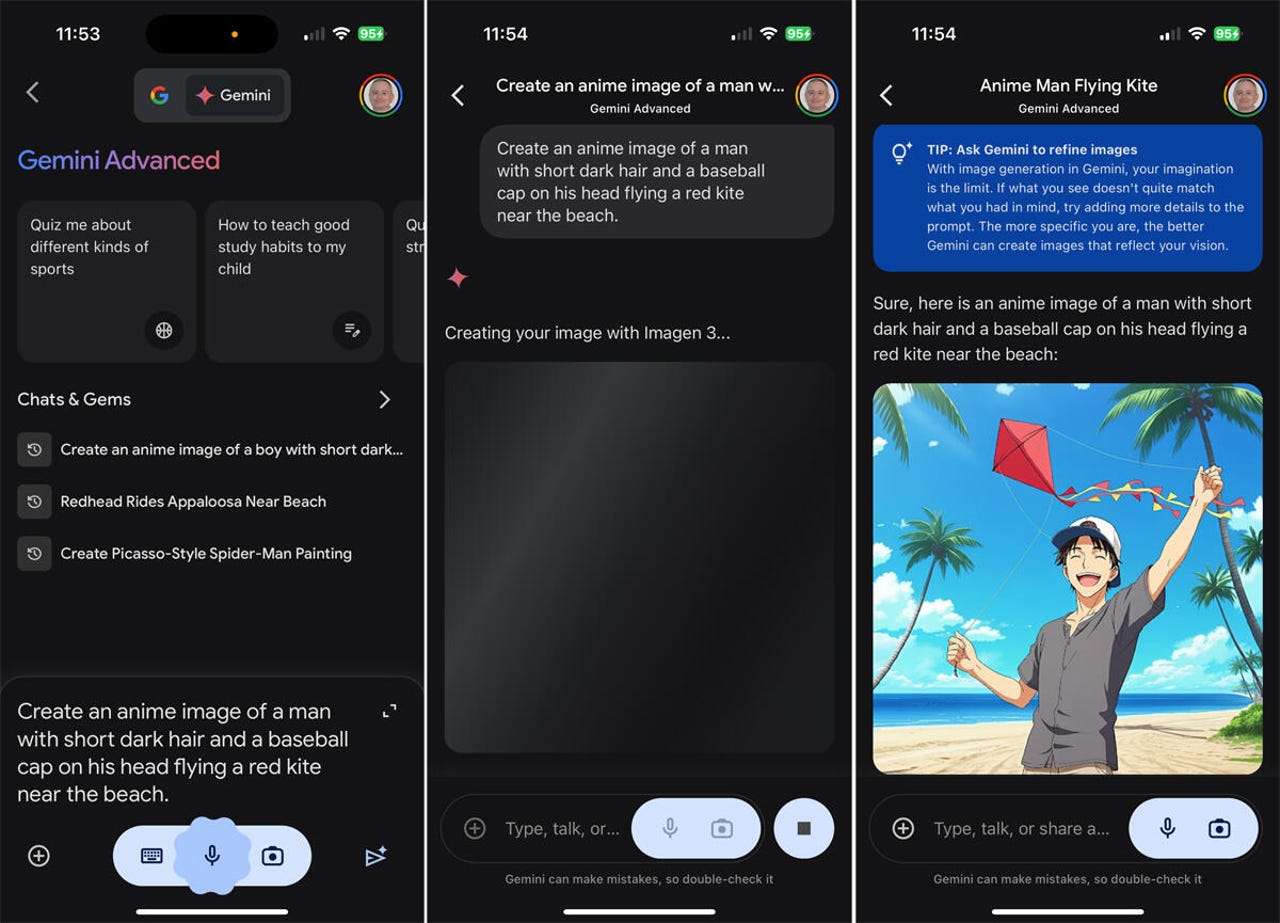
Image source: ZDNET
What Is the Nano Banana 2 Model?
The engine powering Gemini's visual capabilities is widely known in consumer documentation as Nano Banana 2 (NB2). Built upon the foundation of Google DeepMind's Gemini 3.1 Flash Image architecture, NB2 represents a significant advancement in how artificial intelligence interprets and renders visual data.
Unlike older models that essentially acted as advanced tagging systems—matching the word "dog" to a database of dog pixels—NB2 is natively multimodal. This means it understands the spatial relationships, lighting physics, and contextual logic of a scene. If you ask for a "glass of water on a table during an earthquake," the model understands that the water should be sloshing and the reflections should be distorted, rather than just pasting a static glass onto a blurry table.
Core Capabilities of the Engine
The NB2 model is designed to handle several distinct visual tasks within the Gemini interface:
- Text-to-Image Generation: Translating descriptive paragraphs into original, high-resolution artwork or photorealistic images.
- Image-to-Image Editing: Accepting an uploaded photo and modifying specific elements, such as changing the background or altering the style, while preserving the core subject.
- Precise Text Rendering: One of the most notable improvements in the 2026 iteration is the ability to render legible text. Users can generate storefronts with specific names, greeting cards with accurate spelling, or logos with readable typography.
By integrating these capabilities directly into the conversational interface, Gemini functions less like a standalone image generator and more like a collaborative design assistant.
How to Generate Your First Image in Gemini
Generating images in Gemini is designed to be frictionless, but understanding the interface options can significantly improve your output quality. The process works seamlessly across both desktop browsers and the Gemini mobile app.
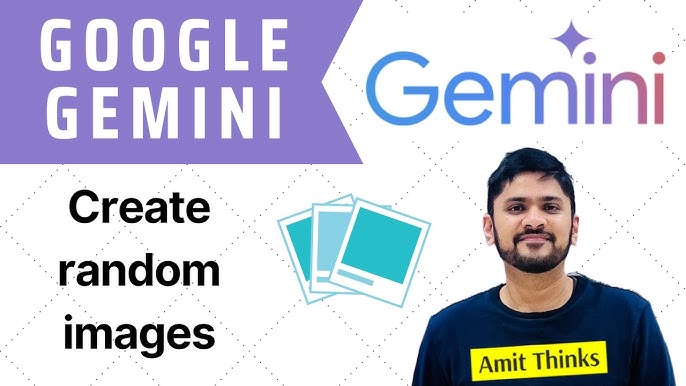
Image source: YouTube
Step-by-Step Generation
To begin, you can simply type a prompt into the main chat window. However, for more control, many users prefer the dedicated tool menu:
- Click the + icon or the 🍌Create images option in the Gemini input area.
- Enter your prompt. Be as descriptive as possible regarding the subject, setting, and artistic style.
- Specify an aspect ratio if needed. By default, Gemini often generates square (1:1) images. You can explicitly request "in 16:9 aspect ratio" for YouTube thumbnails or presentation slides, or "in 9:16 aspect ratio" for mobile-friendly vertical formats like TikTok or Shorts.
- Press enter. Gemini will typically generate a batch of 2 to 4 variations based on your request.
Understanding AI Watermarking
As AI-generated content becomes indistinguishable from traditional photography, transparency is a major focus. Images generated by Gemini using the Nano Banana 2 model include SynthID watermarking. According to Google's official documentation, SynthID embeds a digital watermark directly into the pixels of the image. This watermark is invisible to the human eye and resists tampering, such as cropping or applying filters, allowing detection tools to verify the image's AI origins.
In addition to SynthID, Gemini may occasionally apply visible watermarks or metadata tags depending on the region and the nature of the generated content, ensuring compliance with global digital transparency standards.
Why Narrative Prompts Outperform Keywords in Gemini
If you have used older AI image generators, you might be accustomed to "keyword stuffing"—typing prompts like "cyberpunk city, neon, 4k, unreal engine, masterpiece, trending on artstation." While this worked for early models, it is highly ineffective for Gemini's Nano Banana 2 engine.
Because NB2 is built on a conversational large language model, it responds much better to narrative descriptions. Writing a cohesive paragraph that describes the scene as if you were explaining it to a human illustrator yields far superior coherence and detail.
The "Photographer Framework"
To achieve photorealistic results, developer guidelines suggest structuring your prompts using the "Photographer Framework." Instead of just naming the subject, describe how the photo is being captured.
Specify the camera setup. Use terms like "Extreme close-up," "Wide-angle establishing shot," or specify a focal length. Pro Tip: Requesting an "85mm lens" consistently produces flattering, professional-looking portraits with natural background blur (bokeh).
Lighting dictates the mood. Avoid generic terms like "good lighting." Instead, use "harsh midday sun casting sharp shadows," "soft diffused overcast light," or "warm golden hour backlighting."
Give the model tactile details to render. Mention "sun-etched wrinkles on the skin," "damp pavement reflecting neon signs," or "coarse, weathered wood grain."
Example of a Weak Prompt: "Dog in a park, sunset, realistic."
Example of a Strong Narrative Prompt: "A low-angle, 35mm photograph of a Golden Retriever catching a red frisbee in a lush green park. The lighting is warm golden hour, casting long shadows across the grass. The dog's fur is highly detailed and illuminated from behind, showing motion blur on the paws to convey speed."
How to Edit and Transform Your Existing Photos
Gemini is not limited to creating images from scratch; it also serves as a highly capable photo editor through its image-to-image capabilities. By uploading a reference photo, you can ask the AI to perform complex transformations that would traditionally require hours of manual work in software like Photoshop.
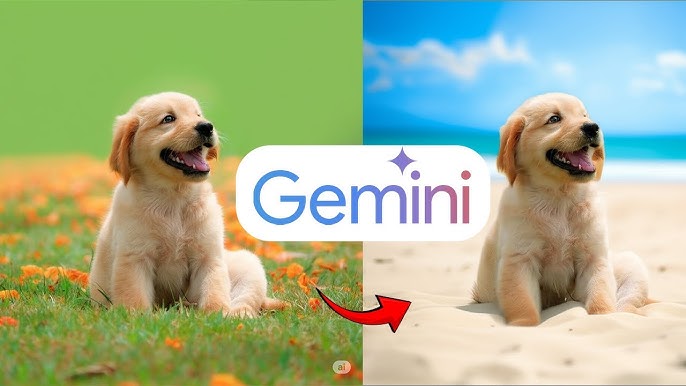
Image source: YouTube
In-Painting and Background Swaps
Once you upload an image to the Gemini chat, you can use natural language to request specific edits. This process, technically known as in-painting, allows the model to alter parts of the image while leaving the rest intact.
- Background Replacement: Upload a product photo and prompt: "Keep the coffee mug exactly as it is, but replace the background with a rustic wooden table overlooking a misty mountain range."
- Object Addition/Removal: Upload a landscape and prompt: "Add a small, red hot air balloon to the upper right corner of the sky."
- Style Transfer: Upload a standard photograph and prompt: "Redraw this entire image in the style of a 19th-century impressionist oil painting, maintaining the original composition."
Personal Intelligence and Creating Images of Yourself
One of the most sought-after features in AI generation is the ability to insert oneself into the artwork. Gemini facilitates this through a feature often referred to as "Personal Intelligence," which leverages the Google ecosystem to understand what you look like.
The Google Photos Extension
To generate images of yourself, you must first enable the Google Photos extension within the Gemini settings. This grants the AI permission to analyze your existing photo library to build a temporary visual profile of your face and features.
Once connected, you can use prompts that explicitly reference yourself. For example, you might type, "Generate an image of me dressed as a medieval knight standing in front of a castle," or "Picture me with a short, curly hairstyle in a corporate headshot setting." The Nano Banana 2 model will synthesize your facial features with the requested environment.
Regional Restrictions
It is crucial to note that as of mid-2026, the Personal Intelligence image generation feature is subject to strict regional rollouts. Currently, this capability is a US-only feature. Users outside the United States attempting to use prompts like "Generate an image of me" will receive a standard refusal message citing regional limitations. Google has indicated that international expansion is planned, but it is contingent on navigating various local biometric data and privacy regulations.
Gemini Free vs. Gemini Advanced: Which Version Do You Need?
Google offers Gemini in two primary tiers: the standard free version and Gemini Advanced (often referred to as the Pro tier), which requires a Google One AI Premium subscription. Both tiers utilize the Nano Banana 2 engine, but they differ significantly in output resolution, usage limits, and processing priority.
| Feature | Gemini Free Standard | Gemini Advanced Pro |
|---|---|---|
| Model Engine | Nano Banana 2 (Standard) | Nano Banana 2 (Pro) |
| Output Resolution | 1K (1024 x 1024 pixels) | 2K (2048 x 2048 pixels) |
| Daily Generation Limits | ~100 images per day | Standard + 3 "Redo with Pro" per day |
| Text Rendering | Standard legibility | High-precision typographic rendering |
The "Sketch-to-Pro" Workflow
For professionals, the most efficient way to use Gemini is to combine the strengths of both tiers. Because the free tier offers a generous daily limit (approximately 100 images), it is ideal for "sketching" ideas. You can rapidly iterate through different prompts, testing lighting, composition, and subject matter without worrying about hitting a hard cap.
Once you generate an image that perfectly matches your vision, Gemini Advanced subscribers can utilize the "Redo with Pro" feature. Community discussions and documentation note that Pro users are allotted a limited number of these high-compute redos per day (typically around 3). Clicking this button sends the image back through the heavier, more resource-intensive Pro model, upscaling the resolution to a crisp 2K and refining fine details like hair, textures, and background elements to marketing-grade quality.
How to Use Interleaved Generation for Complex Projects
A unique advantage of Gemini's architecture is its ability to perform "interleaved generation." Unlike standalone image generators where you must create images one by one and manually insert them into a document, Gemini can act as both writer and illustrator simultaneously.
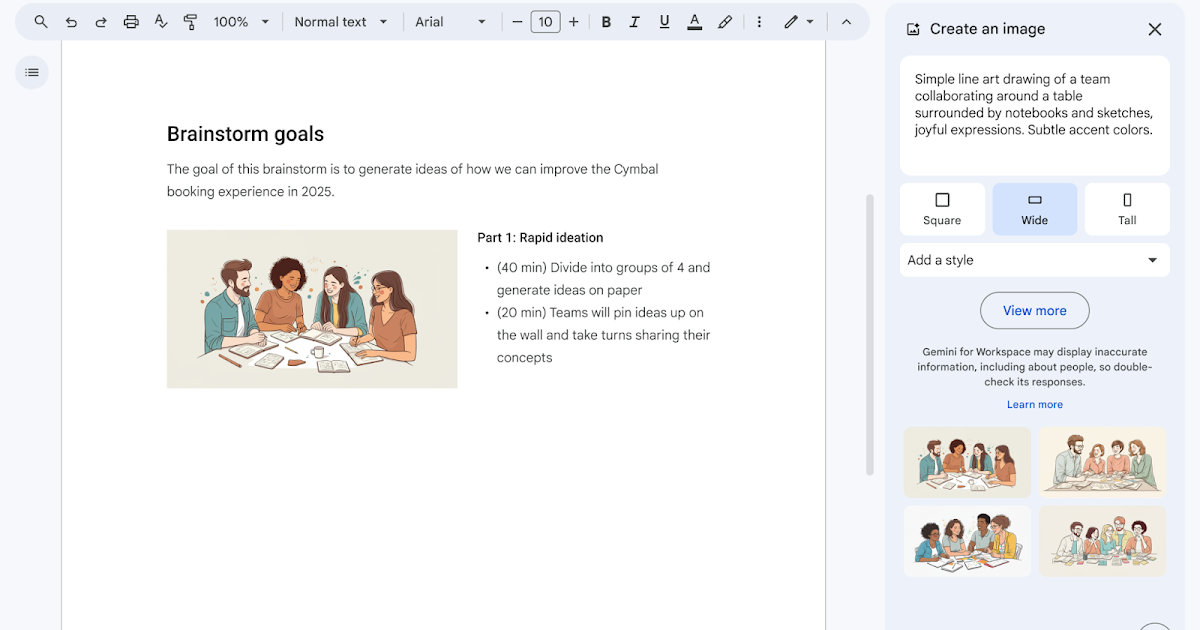
Image source: Google Workspace Updates
The Writer-Illustrator Workflow
If you are creating a tutorial, a children's story, or a recipe, you can ask Gemini to generate the entire project in one prompt. Enterprise documentation highlights this capability as a major productivity booster.
For example, you can prompt: "Write a 3-step guide on how to repot a monstera plant. For each step, write a short paragraph of instructions, and immediately follow it with a generated image illustrating that specific step."
Gemini will output the text for Step 1, followed by an image of a plant being removed from a pot; then the text for Step 2, followed by an image of soil being prepared, and so on. To maintain visual consistency across these interleaved images, it is highly recommended to specify an overarching art style in your initial prompt (e.g., "Ensure all images are in the style of flat, minimalist vector illustrations with a green and beige color palette.").
Troubleshooting Common Errors and Restrictions
Even with advanced prompting techniques, users occasionally run into roadblocks. Understanding Gemini's safety guardrails and technical limitations can save you significant frustration.
Copyright and Public Figures
If you request an image of a specific celebrity, politician, or copyrighted character (like Mickey Mouse or Batman), Gemini will almost certainly refuse the prompt. Google has implemented strict safety filters to prevent the generation of deepfakes, misinformation, and copyright infringement. Instead of asking for a specific character, describe their archetype: instead of "Batman," ask for "a brooding vigilante in a dark, bat-themed tactical suit standing on a gargoyle."
Latency and Hanging Generations
Image generation requires massive computational power. Historically, users might wait up to a minute for an image. However, the integration of the Gemini 3.1 Flash architecture has reduced latency by an estimated 74% to 76% compared to previous generations. If your generation hangs or spins for more than 30 seconds, it is rarely a processing issue; it is usually a network timeout or a silent safety filter block. Refreshing the page and slightly altering your prompt to remove potentially sensitive words is the most effective fix.
Frequently Asked Questions
- Is Gemini's image generator free to use?
- Yes, the standard version of Gemini allows users to generate images for free, subject to daily usage limits (typically around 100 images per day). However, higher-resolution 2K downloads and advanced refinement tools require a paid Gemini Advanced subscription.
- Can Gemini generate text inside images?
- Yes. The Nano Banana 2 model is specifically optimized for typographic rendering. You can request signs, logos, or documents with specific text by placing the desired words in quotation marks within your prompt (e.g., A neon sign that says "Open 24/7").
- How do I download images in 2K resolution?
- To access 2K (2048x2048) resolution, you must be subscribed to the Google One AI Premium plan (Gemini Advanced). Once subscribed, you can use the "Redo with Pro" feature on a generated image to upscale and refine it before downloading.
- Does Gemini store my uploaded photos?
- When you upload photos for editing or use the Google Photos extension, Google processes these images according to its privacy policy. While they are used to generate your requested output, Google states that personal images are not used to train their foundational public AI models without explicit consent. Always review your specific account privacy settings.
- Why can't I edit photos in my country?
- Certain features, particularly image-to-image editing and the "Personal Intelligence" (generating images of yourself) tools, are subject to regional rollouts due to varying international laws regarding biometric data and AI safety. As of 2026, many of these personalized features remain restricted to users in the United States.
Final Thoughts
Gemini has evolved from a simple text chatbot into a robust, multimodal workstation. By mastering the Nano Banana 2 engine, you can produce professional-grade visual assets in seconds.
- Ditch the keywords: Use narrative, descriptive paragraphs (the Photographer Framework) for better coherence and realism.
- Check your account settings: Ensure your account age is set to 18+ to unlock powerful image-to-image editing features.
- Leverage the ecosystem: Connect the Google Photos extension to generate personalized images (currently US only).
- Optimize your workflow: Use the free tier to rapidly sketch ideas, then apply the "Redo with Pro" feature to finalize your chosen concept in crisp 2K resolution.