Which AI Slide Generator Actually Creates Professional Presentations in 2026?
In 2026, the ideal AI slide generator depends entirely on your presentation environment. Gamma ranks among the top options for asynchronous, web-based sharing due to its scrollable format. For teams deeply embedded in Google Workspace, Plus AI offers a seamless add-on experience with zero learning curve. If you need to convert complex academic PDFs or research papers into structured lectures, tools powered by advanced reasoning models like NoteGPT and Manus are highly recommended.
Staring at a blank white slide with a blinking cursor is a universally frustrating experience. Historically, building a presentation required a tedious combination of outlining, copywriting, graphic design, and formatting. Today, AI slide generators have fundamentally altered that workflow, shifting the human role from "creator" to "editor."
However, as the market has matured, users have discovered that not all AI presentation tools are created equal. Many early tools suffered from what the community calls "template explosion"—throwing generic text onto visually chaotic backgrounds without logical flow. In 2026, professionals are looking past the hype of simple text-to-slide generation and demanding tools that offer contextual awareness, layout flexibility, and reliable export capabilities.
How Do AI Slide Generators Work and What Can They Really Do?
Modern AI slide generators operate by chaining together several distinct artificial intelligence models. When you provide an input, a Large Language Model (LLM) first structures the narrative arc, breaking your topic into logical sections. Next, a design algorithm maps that text to appropriate visual layouts, while an image generation model (or stock photo API) sources relevant background visuals.
The most significant advancement in recent months is input versatility. You are no longer limited to typing a short prompt like "make a presentation about quarterly sales." Today's platforms can ingest massive amounts of existing data. You can upload a 50-page PDF, paste a link to a published blog post, or import raw Excel data, and the AI will synthesize that information into a structured deck.
According to data from SlidesGPT, which has facilitated the creation of over 10 million presentations, utilizing AI for the initial drafting phase allows users to create presentations approximately 10x faster than manual design. This speed metric represents the "blank page" solution—getting you to a 60% complete draft in seconds.
To understand the current landscape, it is helpful to categorize these tools by their ecosystem:
- Native Integrations
- These are AI features built directly into the software you already use, such as Microsoft Copilot in PowerPoint or Gemini in Google Slides. They offer the highest security for enterprise data but often struggle with complex layout generation compared to dedicated tools.
- Browser Add-ons
- Tools like Plus AI live inside your existing presentation software as an extension. They provide advanced AI capabilities without forcing you to leave the Google Slides or PowerPoint interface, minimizing the learning curve.
- Standalone Web Apps
- Platforms like Gamma, Canva, and NoteGPT operate in their own browser-based environments. They typically offer the most innovative design features and multimodal inputs, but require you to export the final product if you need a traditional .PPTX file.
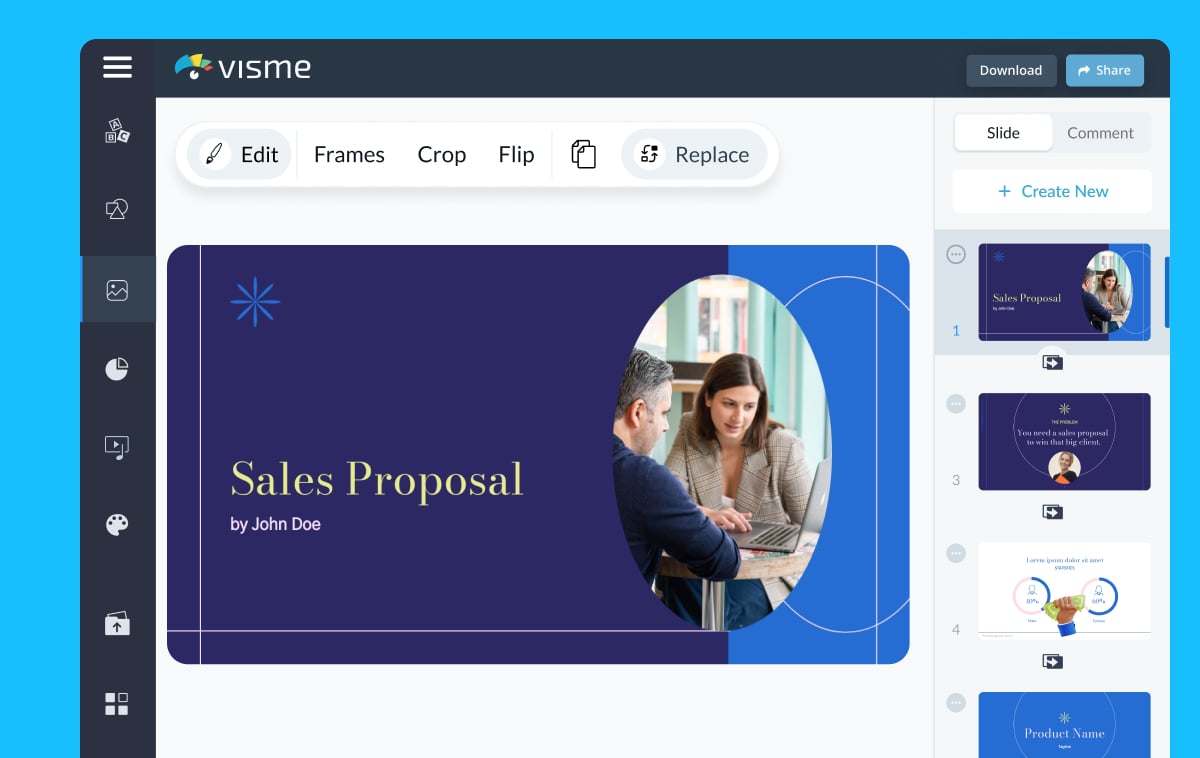
Image source: Visme
Which AI Tool Is Right for Your Specific Presentation Workflow?
Choosing a tool based solely on its marketing claims often leads to frustration. The most critical factor in your decision should be how the final presentation will be consumed. This introduces the "Async vs. Live" divide.
If you are creating a pitch deck that will be emailed to an investor to read on their own time (asynchronous), a tool like Gamma is highly effective. Its fluid, scrollable web format feels modern and reads like a highly visual document. However, community feedback from professional presenters indicates that Gamma's format can be polarizing if you are standing on a stage clicking through slides live. For live presentations, traditional slide boundaries found in Canva or PowerPoint remain the standard.
Furthermore, consider the friction of adopting new software. If your entire company operates within Google Workspace, introducing a standalone app creates an extra step. In these cases, an add-on is often preferred to maintain workflow continuity.
| Tool Name | Primary Strength | Best Input Types | Export Formats | Learning Curve |
|---|---|---|---|---|
| Gamma | Web-based, scrollable presentations | Text prompts, Docs, Webpages | Web link, PDF, PPTX | Moderate |
| Canva Magic Design | Visual variety and brand kits | Text prompts, Excel data | PPTX, PDF, MP4, Web | Low |
| Plus AI | Google Slides integration | Text prompts, Outlines | Google Slides, PPTX | Very Low |
| NoteGPT | Academic/Research summarization | Long PDFs, YouTube URLs | PDF, PPTX | Moderate |
| Pitch | Sales analytics and CRM tracking | Text prompts, Data integrations | Web link, PDF | Moderate |
| Microsoft Copilot | Enterprise data security | Word Docs, Internal Data | PPTX | Low |
Top-Rated AI Slide Generators for Professional Use in 2026
Based on extensive community testing, feature analysis, and real-world application, several tools have distinguished themselves in specific professional niches.
Gamma: Modern Web-Based Presentations
Gamma has gained significant traction by rethinking the concept of a "slide." Instead of rigid 16:9 rectangles, Gamma creates fluid, scrollable web pages that adapt to any screen size. It excels at AI-powered rewriting; you can highlight a block of text and ask the AI to "make this sound more professional" or "expand this into three bullet points."
However, users should be aware of the "Chat Interface Trap." When using the AI sidebar to edit a specific slide, poorly phrased prompts can sometimes cause the AI to regenerate the entire deck, inadvertently altering your chosen theme. It requires precise prompting during the editing phase.
Canva Magic Design: Visual Variety and Branding
For users who prioritize aesthetics, Canva's Magic Design offers exceptionally strong visual capabilities. Because it is built on top of Canva's massive asset library, the AI can pull from millions of high-quality stock photos, videos, and graphics. A notable feature for 2026 is its automatic translation capability, supporting over 100 languages, making it a strong contender for international teams. Additionally, its "Magic Charts" feature can analyze raw data and suggest optimal chart types for visual storytelling.
Plus AI: Google Slides Power Users
Plus AI operates directly inside Google Slides. Its primary advantage is workflow integration. Because it generates native Google Slides elements, every text box, shape, and image is fully editable using the standard Google interface. This eliminates the common issue of AI tools exporting "flattened" or uneditable shapes.
Alai: Layout Flexibility
A common complaint regarding AI generators is the "take-it-or-leave-it" output. Alai addresses this by offering multiple layout options per slide. If the AI generates a timeline but you prefer a grid, you can toggle between four distinct structural layouts without losing the underlying contextual narrative of the presentation.
NoteGPT and Manus: Academic and Research Heavy Lifting
For students, researchers, and educators, the challenge isn't just design—it's synthesizing massive amounts of complex information. NoteGPT utilizes advanced models (like Gemini 1.5 Pro) to ingest lengthy academic PDFs and transform them into structured lectures. Similarly, Manus (now integrated with Meta's ecosystem) focuses on deep reasoning, ensuring that the logical flow of a research paper is accurately represented across the slide deck.
Image source: NoteGPT
How to Turn Complex Documents and Data into Slides Instantly
The true value of AI in 2026 lies in document conversion. Manually copying and pasting statistics from a report into a presentation is a highly inefficient use of time. Here is how modern workflows handle different data types:
The PDF-to-Presentation Workflow
When dealing with annual reports or whitepapers, tools equipped with high-context windows are required. You upload the PDF, and the AI scans the document to identify headers, key arguments, and statistical highlights. It then maps these elements to a slide structure. The AI is trained to summarize paragraphs into bullet points and allocate one core concept per slide to prevent cognitive overload for the audience.
Turning Excel Data into Visual Stories
Raw numbers rarely make for an engaging presentation. Integrations within Microsoft Copilot and Canva allow users to highlight a dataset and prompt the AI to visualize it. The AI evaluates the data relationship (e.g., recognizing a time-series trend versus a categorical comparison) and automatically generates the appropriate line graph, pie chart, or bar chart, applying your brand colors in the process.
From Blog Post to Slide Deck
Content marketers frequently repurpose written content into webinar decks. Platforms like Presenti.ai allow users to paste a URL directly into the prompt box. The AI scrapes the live webpage, extracts the H2 and H3 subheadings to form the presentation outline, and summarizes the body text for the slide content.
If you are converting a document into a slide deck to send via email, look for tools that offer built-in screen recording. Recording a quick 2-minute video of yourself talking through the AI-generated slides adds a human element that significantly increases engagement rates compared to sending a silent PDF.
Common Problems with AI Presentations and How to Fix Them
Despite significant advancements, relying entirely on AI without human oversight will likely result in a subpar presentation. Community testing across professional forums has highlighted several recurring issues.
"The biggest issue with AI slide makers isn't the text generation—it's that they export files where half the shapes are locked, the fonts default to Arial, and the alignment breaks the second you open it in PowerPoint."
The "Template Explosion" Problem: Many AI tools prioritize visual flair over readability. They might place dark text over a busy, dark image, making it illegible. To fix this, always utilize the "Contextual Edit" features. Instead of manually moving elements, prompt the AI sidebar with: "Increase the contrast on slide 4" or "Change the background to a solid muted color."
The Broken PPTX Export Reality: A tool may claim it exports to .PPTX, but the reality is often messy. When moving from a web-based AI tool to desktop PowerPoint, custom web fonts often break, and complex AI-generated graphics may export as uneditable, flattened images. Solution: Always do a "dry run" export early in your design process to ensure compatibility, or stick to native add-ons if strict PPTX formatting is required by your employer.
Zero Visual Control: Some native integrations, particularly early iterations of Google Gemini in Workspace, have been criticized for offering "zero visual control." Users report that the AI generates the content but leaves the user entirely responsible for the design, or applies a rigid theme that cannot be easily tweaked without heavy prompt engineering.
How to Build a Professional Presentation Workflow with AI
To consistently produce high-quality presentations, you must treat AI as a collaborative assistant rather than an autonomous creator. Follow this structured workflow to maximize efficiency while maintaining quality control.
- Step 1: The Data Dump. Gather all your source materials—PDFs, URLs, meeting notes, and raw data. Do not rely on the AI to hallucinate facts; provide it with the exact information you want included.
- Step 2: The AI Draft. Select your tool based on the Async vs. Live framework. Feed your source material into the generator and allow it to create the baseline structure and initial layouts.
- Step 3: The Contextual Edit. Review the narrative flow. Use the AI chat sidebar to refine the tone. Ask it to "make the language more persuasive" or "reduce the text on slide 6 to three short bullet points."
- Step 4: The Human Polish. This is where you add your expertise. Swap out generic AI-generated images for specific company assets, screenshots, or branded graphics. Adjust the layout to ensure data is presented clearly.
- Step 5: The Final Export and Review. Export the file to its final format (.PPTX, PDF, or Google Slides). Open the exported file and manually click through every slide to check for broken fonts, misaligned text boxes, or contrast issues.
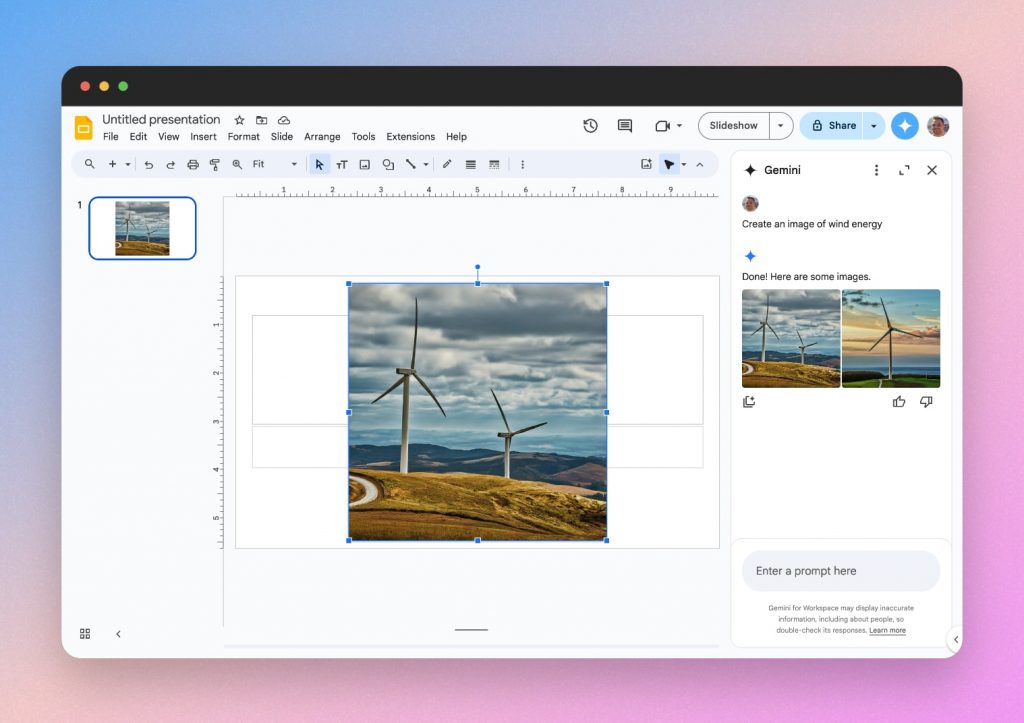
Image source: SlideSpeak
Frequently Asked Questions
Is there a completely free AI slide generator?
While many tools advertise as "free," this usually means they offer a limited freemium tier. Platforms like Slidesgo and NoteGPT provide a set number of free credits or complimentary generations upon sign-up. For ongoing, unlimited professional use, almost all reliable AI slide generators require a monthly subscription.
Can AI convert a PDF into a PowerPoint presentation?
Yes. Tools equipped with document-parsing capabilities, such as NoteGPT, can ingest PDF files. The AI reads the document, extracts the core concepts, structures them into a presentation outline, and generates the corresponding slides, which can then be exported as a .PPTX file.
What is a good AI for making professional business presentations?
For business environments, Pitch is highly regarded for sales teams due to its CRM integrations and analytics tracking. If your company uses Google Workspace, Plus AI is a strong contender because it operates directly within Google Slides, ensuring your team doesn't have to learn a new standalone platform.
Does Google Slides have a built-in AI generator?
Yes, Google has integrated its Gemini AI into Google Workspace. Users with the appropriate subscription can use Gemini directly inside Google Slides to generate text, create custom images, and build initial slide drafts. However, users often note that dedicated add-ons currently offer more robust layout controls.
Can ChatGPT create a PowerPoint file?
Standard ChatGPT cannot directly output a formatted .PPTX file natively. However, you can use custom GPTs like SlidesGPT (available in the GPT store) to generate downloadable presentations. Alternatively, you can ask ChatGPT to write VBA (Visual Basic for Applications) code, which you can then paste into PowerPoint to automatically generate slides.
How do I ensure my data is safe when uploading PDFs to AI?
Data privacy is a major concern. If you are uploading proprietary company data or sensitive financial PDFs, you should avoid free, public AI tools that may use your data to train their models. Instead, use enterprise-tier solutions like Microsoft Copilot, which are designed to keep your data secure within your organization's existing compliance boundaries.
The Bottom Line
AI slide generators have evolved from simple text-to-slide novelties into robust document-conversion engines. However, they remain a "starting line" tool rather than a "finish line" solution. To get the most out of these platforms in 2026, you must align the software with your specific workflow and be prepared to apply human polish to the final output.
- Match the tool to the ecosystem: Choose add-ons for Google Workspace/Microsoft environments to reduce friction, and standalone apps for highly visual, web-based sharing.
- Leverage multimodal inputs: Save time by uploading existing PDFs, URLs, or Excel data rather than typing out long prompts from scratch.
- Prioritize layout flexibility: Look for tools that offer multiple design variations per slide to avoid the generic "AI template" look.
- Beware the export trap: Always test the .PPTX export quality early to ensure fonts and shapes remain editable in traditional software.
- Use contextual editing: Utilize the AI chat sidebar to adjust tone and contrast rather than manually dragging elements around the canvas.